Key Takeaways
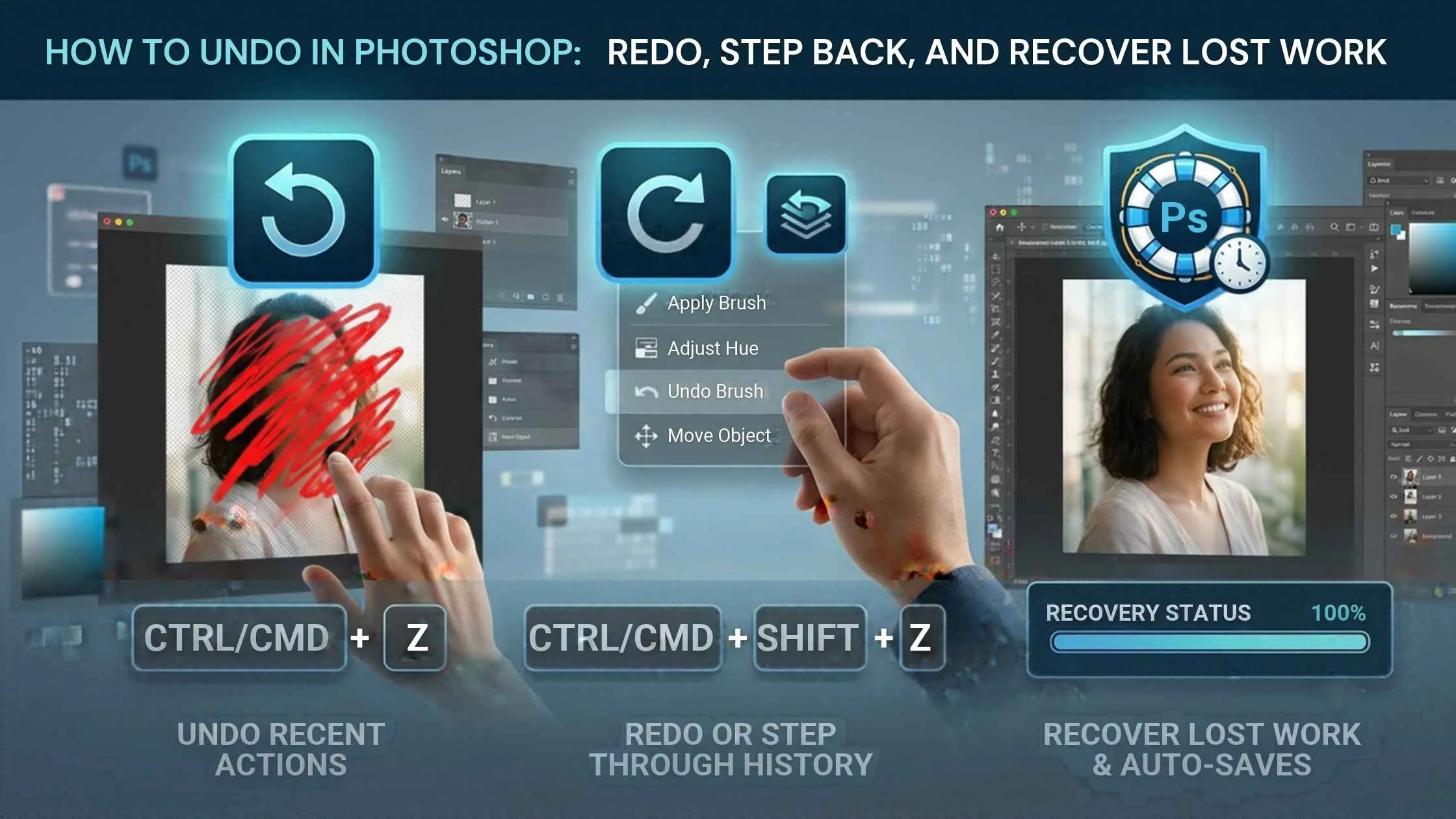
- Ctrl+Z (Windows) or Cmd+Z (Mac) is the quickest way to undo in Photoshop, but whether it goes back one step or several depends on your Photoshop version.
- The History panel allows editors to jump back to any earlier step, not just the last one.
- Photoshop only remembers 50 steps by default. You can raise that limit in preferences.
- A crash or accidental save-over is not always the end. AutoRecover files can recover the work.
- Saving V1, V2, V3 versions of big edits is the cheapest insurance an editor can buy.
To undo in Photoshop, press Ctrl+Z on Windows or Cmd+Z on Mac. To go back further, use the History panel, and if Photoshop crashed or you saved over a file, check the AutoRecover folder.
An accidental flatten. A client asking for the previous version. A crash halfway through a retouch. This is usually the moment people search for how to undo in Photoshop. The good news: Photoshop gives you more safety nets than most people use. This guide walks you through the shortcuts, the History panel, how to stretch your undo limit, and how to recover a file after a crash.
Undo and Redo Shortcuts in Photoshop
Most Photoshop mistakes take less than a second to reverse. Want to know how to undo and redo in Photoshop? The shortcuts below work on both Windows and Mac.
| Action | Windows | Mac |
|---|---|---|
| Undo | Ctrl + Z | Cmd + Z |
| Redo (step forward) | Ctrl + Shift + Z | Cmd + Shift + Z |
| Step Backward | Ctrl + Alt + Z | Cmd + Option + Z |
| Revert to last saved version | F12 | F12 |
You can also use the menu: go to Edit > Undo or Edit > Redo. The menu is handy because it shows the name of the action you are about to undo, like “Undo Brush Tool.”
Why Ctrl+Z Behaves Differently in Some Versions
In newer versions of Photoshop, pressing Ctrl/Cmd+Z repeatedly steps back through several actions. In older versions, or if “Use Legacy Undo Shortcuts” is switched on, Ctrl/Cmd+Z only undoes the last action, and pressing it again redoes it (like a toggle). If you are learning how to redo in Photoshop and the shortcut behaves strangely, this setting is usually the reason. You will find it under Edit > Preferences > General (on Mac: Photoshop > Settings > General).
How to Go Back Multiple Steps with the History Panel
What if you need to go back 15 steps, not one? Clicking Undo works, but there is a faster way.
Open the History panel by going to Window > History. You will see a list of everything you did, from oldest at the top to newest at the bottom. Click any step in the list, and your image jumps back to that moment. Nothing is lost yet. If you change your mind, click the bottom step to return where you started.
Here is the catch: as soon as you make a new edit while on an earlier step, the steps below it disappear. So look around first, then decide.
Two handy tricks:
- Take a snapshot. Click the small camera icon at the bottom of the History panel. It saves the current look of your image so you can return to it later in the same session.
- Create a new document from a state. Right-click a step and choose that option to branch off a copy without touching your main file.
How to Increase the Number of Undo Steps in Photoshop
Photoshop only remembers 50 steps by default, which can run out quickly during a long retouch. To raise the limit, go to Edit > Preferences > Performance (on Mac: Photoshop > Settings > Performance), change the History States number, and restart Photoshop. The new limit applies to your future sessions. The maximum is 1000, but a higher number uses more system resources, so raise it only as far as you need.
How to Recover an Unsaved Photoshop File After a Crash or Overwrite
Undo only works when the file is open. If Photoshop crashes or you close the file by mistake, those steps are gone. Here’s what to try.
1. Reopen Photoshop. After a crash, Photoshop often offers to open the recovered file. Check your open documents before doing anything else.
2. Check the AutoRecover folder. If Photoshop opens blank, you can manually check the hidden backup folder:
- Windows: C:\Users\[your name]\AppData\Roaming\Adobe\Adobe Photoshop [version]\AutoRecover
- Mac: ~/Library/Application Support/Adobe/Adobe Photoshop [version]/AutoRecover
Open the file from there, then click Save As right away to save it somewhere safe. On Windows, the AppData folder is hidden by default, so switch on Hidden Items in File Explorer.
3. Check your cloud or system backups. If you saved over a file accidentally, tools like File History (Windows), Time Machine (Mac), or your cloud storage’s version history may have an older copy.
4. Turn on AutoSave for next time. Go to Preferences > File Handling and tick “Automatically Save Recovery Information Every”. Set it to 5 to 10 minutes so your work is saved automatically and you are never starting from scratch.
Why Saving Versions Is Cheap Insurance
The simplest fix is a habit: save v1, v2, v3 as you go. Before a big change, like flattening, merging, or heavy retouching, use File > Save As and add a number to the name. It takes five seconds. If something goes wrong, or a client says “can we see the earlier one?”, you already have it.
This matters most on layered work such as high-end skin retouching techniques in Photoshop, where one wrong move can cost you an hour of careful edits.
Common Mistakes to Avoid
- Flattening too early. Once you flatten and save, your layers are gone for good. Keep a layered copy until the job is fully approved.
- Relying on undo alone. Undo is a short-term memory, not a backup. Close the file, and it is wiped.
- Leaving the default settings untouched. Fifty history steps and no autosave interval is a risky combination for long sessions.
- Saving over the original. Always work on a copy, especially for client photos.
Protect Your Work and Get Expert Editing Help
Knowing how to undo, redo, use the History panel, and recover a crashed file in Photoshop turns a bad moment into a small detour. Raise the history limit, switch on autosave, and keep numbered versions of every important edit.
Short on time, or tired of fixing edits yourself? The team at Plexail handles professional photo editing services and photo retouching services so you can skip the headaches and get clean, client-ready images. Get in touch with Plexail today and let the experts take the next edit off your plate. Call +91 9819259097 or email us at info@plexail.com.