Key Takeaways
- As GIMP is free software, you do not have to pay a subscription.
- Photoshop has advanced features that let you do complicated things easily using AI and selection tools.
- Both GIMP and Photoshop have advanced editing capabilities. These include photo retouching, layer editing, colouring and background removal.
- GIMP is a good option for beginners. Using just a few tutorials will enable you to get to grips with the layout and basic editing.
- It may depend on what you require from your software. If money is an issue, GIMP would be best for you. However, if you need advanced editing features regularly, Photoshop is a better option.
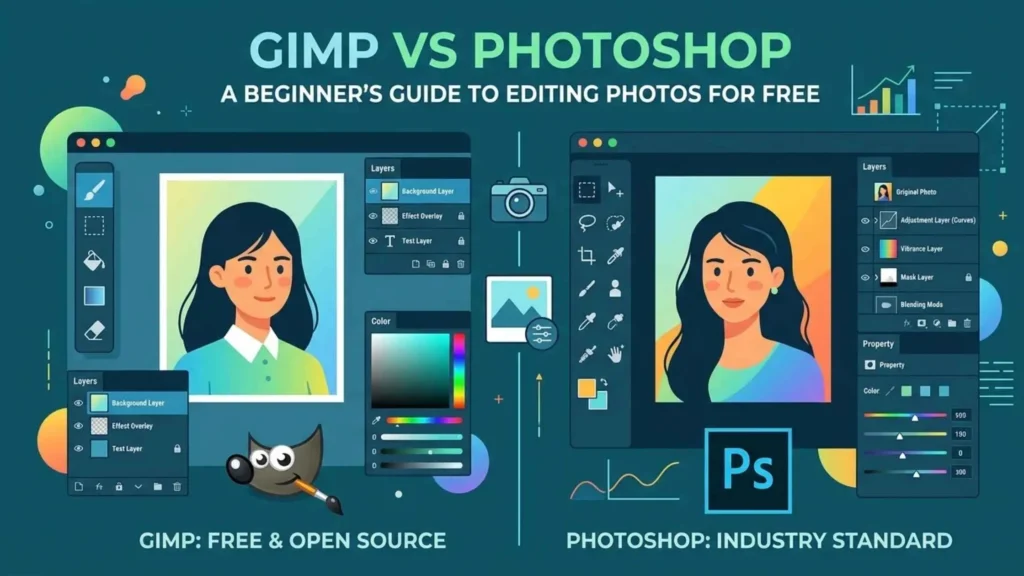
In the GIMP vs Photoshop debate, GIMP wins on price and Photoshop wins on speed and AI tools. GIMP is a free Photoshop alternative that can perform most simple edits, such as retouching, background removal and colour correction. However, it asks for a little more patience and has less precise edge selection tools than Photoshop.
This guide is useful for hobbyists, small business owners and photographers who simply cannot justify a monthly Photoshop cost at the moment. First, there is a quick comparison of GIMP vs Photoshop to help you decide which to choose. After that, there is a beginner’s pathway to learn GIMP, with pointers to useful tutorials.
GIMP vs Photoshop: Quick Comparison
| GIMP | Photoshop | |
|---|---|---|
| Cost | Free, no subscription | Paid (monthly or annual) |
| Learning curve | Requires practice | Requires practice, but has assisted tools |
| Plugins | Can add third-party plugins | Many plugins available |
| Edge selection / AI | Manual (no AI) | Select Subject, Neural Filters, Generative Fill |
What GIMP Does Well
There are many advantages to using GIMP for basic editing. Three of them are:
Layers
Each design component can be placed on its own layer, so if you change one element, it does not affect the others. This makes editing much simpler.
Batch Editing
If you have lots of images to edit, batch editing can save a huge amount of time.
Completely Free
GIMP is free, which makes it very affordable and perfect for beginners and people who edit photos as a hobby.
Where Photoshop Still Wins
Despite GIMP being very good, Photoshop still has advantages over GIMP.
Select Subject With AI
This makes it easy to select elements of an image with great accuracy, even complex hair. In GIMP, you would have to do more manual selections. If you were cutting out 30+ subjects a week, that extra work would quickly add up, and background removal services can take it off your hands.
Neural Filters
These allow you to smooth skin, alter expressions or add colour to old photos using sliders.
Extensive Resources
There are a huge number of resources available (tutorials, templates and plugins), so almost every question you may have has already been answered.
GIMP vs Photoshop: Which One Should You Choose?
We recommend the following:
- Hobbyist or occasional editor: GIMP. This saves money, and the skills you gain are transferable.
- Small business with only a few product images: GIMP, unless you really do not have enough time. If time is the problem, professional photo editing services can handle the edits for you.
- Professional or high-volume editor: Photoshop, as it is quick and the cost is justified.
- Many people use GIMP first and then make a much wiser decision once they know what they require from their image editing software.
A Beginner’s Learning Path for GIMP
Getting started with editing software can be overwhelming, so one step at a time is the best course of action. A good tutorial should guide you through each feature slowly. For example:
Navigation in GIMP
Get familiar with the tools in the toolbar, menu bar, image window and layers window. Once you are comfortable with navigation, try opening an image, zooming in and out, and saving a version.
Working With Layers and Masks
Once you are familiar with navigating GIMP, try using layers. Try creating new layers, adjusting the transparency and turning layers on and off.
Then practise with layer masks. These are extremely useful for editing backgrounds or putting together different images.
Selection Tools
These allow you to select a specific part of the image. Rectangular and Oval selections can be used for simple selections. To get more detailed, try the Free Select or Foreground Select tools.
Try an Editing Task
Now you can apply what you have learnt. Try one simple task, such as removing a background from a product image or adjusting the colours in an old image. A good place to start is learning how to make a background transparent in GIMP.
Watch some beginner-level GIMP tutorials and repeat the steps yourself. It will be very helpful to try these tasks on your own images, and GIMP’s tools will become much more familiar to you. You can find useful learning resources through the official GIMP documentation and community tutorials.
Get Professional Help With Photo Editing
GIMP is a great starting point, but it can be slow when you have a large batch of images or complex edges to handle. If you would rather skip the manual work, the team at Plexail offers professional photo editing, including ecommerce photo editing services for product images, so you get clean, consistent results without the learning curve.
Get in touch with Plexail today. Call +91 9819259097 or email us at info@plexail.com.