Key Takeaways
- DPI is a print setting. It controls how tightly a printer packs ink dots, not how your photo looks on screen.
- Use 300 DPI for anything people will hold or stand close to, such as photo books, brochures, and portraits.
- Pixels decide quality, not the DPI label. A photo with too few pixels will look soft in print, no matter what DPI you attach to it.
- For websites and social media, ignore DPI. Pixel dimensions are what count.
- Raising DPI doesn’t add detail. It only changes how big the photo prints.
Introduction
DPI stands for dots per inch. Think of it as how closely a printer packs ink dots together. The more dots it fits into one inch of paper, the smoother and sharper your print looks. On a screen, DPI hardly matters.
So, what is DPI in image files, and how is it different from PPI (pixels per inch)? They sound alike, but one belongs to printers and the other to digital files. Plenty of software uses the two interchangeably as if they were the same. Once you notice the difference, everything else is easy: what DPI really means, why 300 DPI is the magic number for print, and when you can stop worrying about it.
What Does DPI Actually Mean?
Picture a newspaper photo under a magnifying glass. You’d see a pattern of tiny dots. Look at a glossy magazine, and the dots are so small you can’t see them with the naked eye.
That’s the idea behind dots per inch. A printer builds an image out of ink dots, and DPI counts how many fit in a one-inch line.
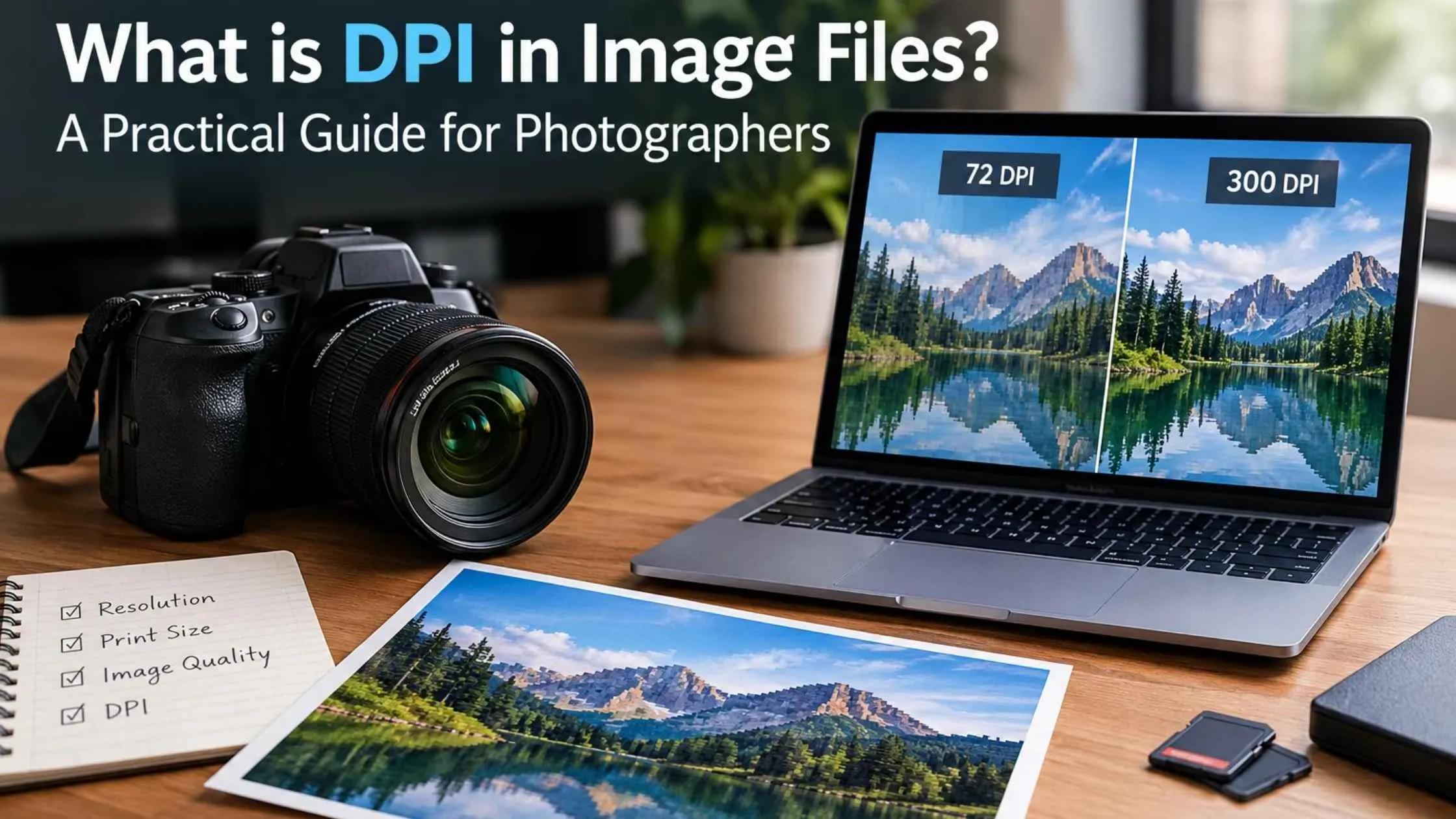
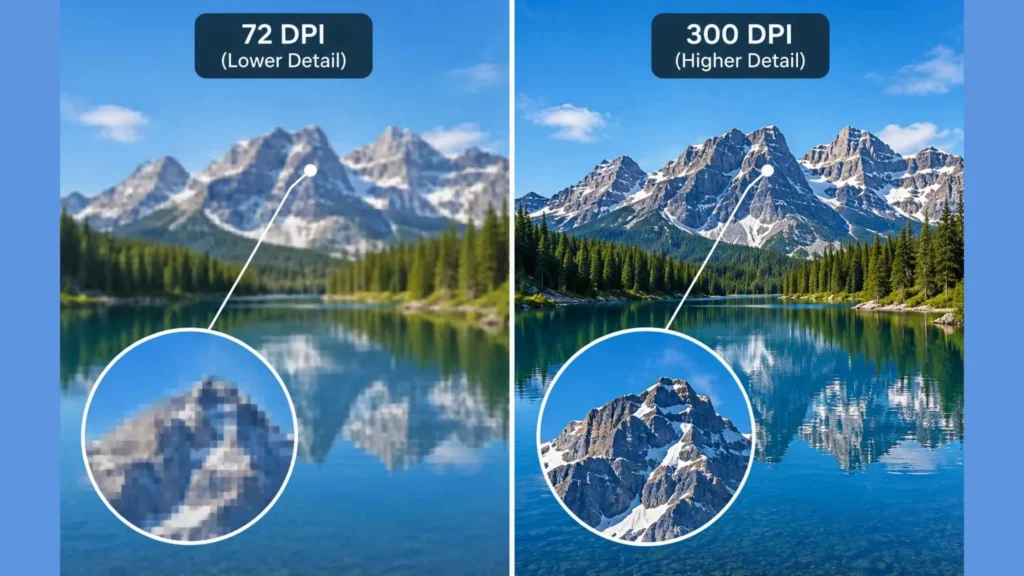
- Low DPI (72): big gaps, visible dots, rough edges.
- High DPI (300): tightly packed dots, smooth tones, crisp details.
In short, the DPI definition is the density of printed dots. Higher density gives finer detail, as long as the photo has enough information to begin with.
DPI vs PPI vs Resolution
This is where most of the confusion lives. Here is a quick way to tell them apart.
| Term | Stands for | Where it applies | What it describes |
|---|---|---|---|
| DPI | Dots per inch | Print and paper | How many ink dots fit in an inch |
| PPI | Pixels per inch | Screens and digital files | How many pixels fit in an inch |
| Resolution | Total detail | Both | The overall amount of detail, often shown as width x height in pixels |
Here is an easy way to remember it. Pixels are what your photo is made of. Dots are what the printer makes from it. Resolution is the total amount of information you start with.
Many editing tools say “DPI” when they really mean PPI. So if you see “300 DPI” inside an image file, it usually means “300 pixels per inch, if printed at this size.”
Why DPI Matters for Print
Here’s why 300 DPI became the print standard: at that density, the human eye can’t pick out single dots at normal reading distance. Skin looks smooth, text looks sharp, and gradients flow without banding.
Now compare what happens if you print a file at 72 DPI:
- Edges look jagged or “stair-stepped”
- Fine details like eyelashes, fabric texture, and small text turn fuzzy
- Skin tones can look blotchy
- The print looks fine on your laptop but disappointing on paper
That last point catches many people off guard. A 72 DPI image can look perfectly sharp on a screen and still print badly, because paper is far less forgiving than a backlit display.
A quick rule: multiply your print size in inches by 300 to find the pixels you need. A 6 x 4 inch print needs about 1800 x 1200 pixels.
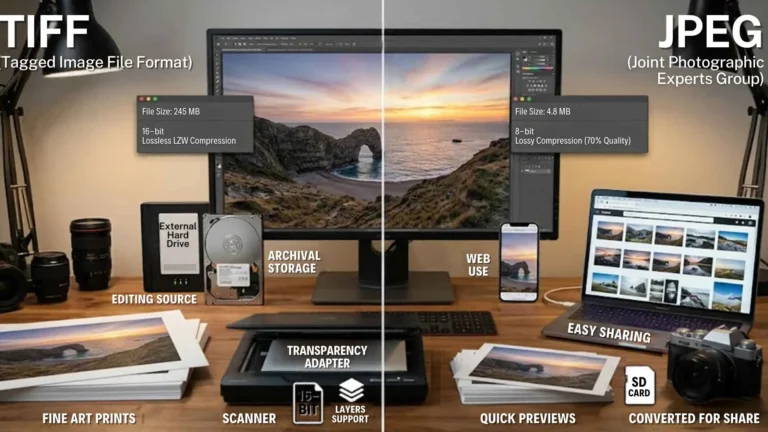
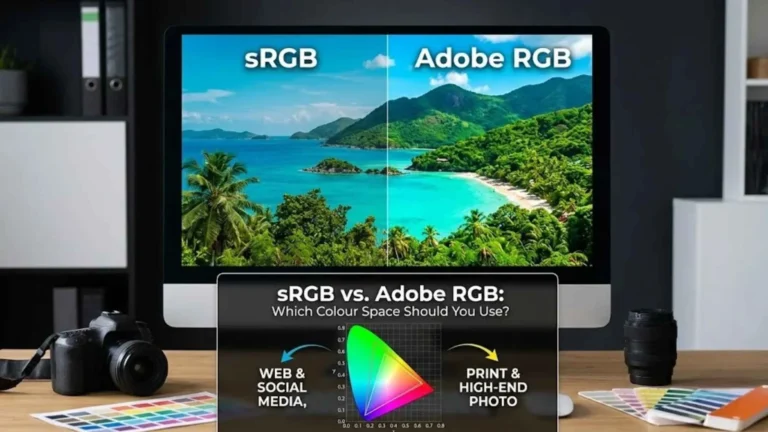
Pixels are only half of print prep. The file type and colour space matter too, so see our guide to TIF vs JPEG for choosing the print master and sRGB vs. Adobe RGB for colour.
Does DPI Matter for Web?
No, DPI does not matter for web display. Screens display images using pixels, not printed dots, so your browser primarily considers the image’s pixel dimensions. A 1200 x 800-pixel photo will display the same way whether its resolution metadata is set to 72 DPI, 300 DPI, or 1000 DPI, as long as its pixel dimensions and display settings remain unchanged.
So for websites, blogs, online stores, and social posts:
- Focus on pixel dimensions (for example, 1600 pixels wide)
- Focus on file size, because smaller files load faster
- Don’t bother changing DPI to “improve” web quality, because it won’t
If someone asks you for a “300 DPI image” for a website, they almost certainly mean “a high-quality, large file.” Ask what pixel size they need. For picking a web-friendly file type, see the best image format for print and web.
How to Check and Change DPI
You can see and adjust the setting in under a minute.
- Open your photo and go to Image > Image Size.
- Look at the Resolution field. That’s your current pixels-per-inch value.
- Check the Width and Height boxes to see the print size at that setting.
- Now the important part. Look for the Resample checkbox.
- Resample OFF: You’re changing only the print size. Set the resolution to 300, and the width and height shrink to match. The pixels stay exactly the same, so quality isn’t touched.
- Resample ON: Photoshop adds or removes pixels. When you make a photo larger this way, the software has to guess at new detail, which can make the image look soft.
Does Raising the DPI Make a Photo Better?
Not by itself. Changing the number from 72 to 300 with resampling off just tells the printer to squeeze the same pixels into a smaller space. The photo prints smaller, not sharper. Real quality comes from having enough pixels, good focus, and clean editing.Get Print-Ready Photos Without the Guesswork
Knowing what DPI means is only half the job. The other half is making sure every photo is sized, sharpened, and color-corrected before it reaches the printer.
That’s where Plexail comes in. Our editing team handles retouching, resizing, and color correction through our photo retouching services and photo editing services, so your photos look as good on paper as they do on screen. Call +91 9819259097 or email info@plexail.com.