Key Takeaways
- sRGB is standard for web, social media, email, and most client image delivery.
- Adobe RGB has a wider gamut and suits controlled professional print work.
- Most screens cannot even show the extra colours Adobe RGB holds.
- Adobe RGB photos can look flat and dull when viewed online without conversion.
- If you are unsure, shoot RAW and deliver in sRGB.
Ever spent an hour perfecting your image’s colours, only to watch them turn flat the moment you hit upload? A colour space mix-up is usually the culprit. The quick answer: sRGB is the safe pick for websites, social media, and sharing, while Adobe RGB only pays off in controlled professional print work. Here is how to choose between sRGB and Adobe RGB with confidence.
Before we dive in, you should know two terms. A colour space works like a translator: it tells your screen or printer how to turn your photo’s colours into real colours. A gamut is that translator’s vocabulary, the full range of colours the space can hold. The bigger the gamut, the more shades it can describe. Once those two ideas are clear, the sRGB or Adobe RGB decision becomes far easier to make.
What Is a Colour Space?
Every digital photo is just a list of numbers. A colour space tells your camera, editing software, monitor, and printer what those numbers mean. When two devices follow different rules, the same file can look different on each.
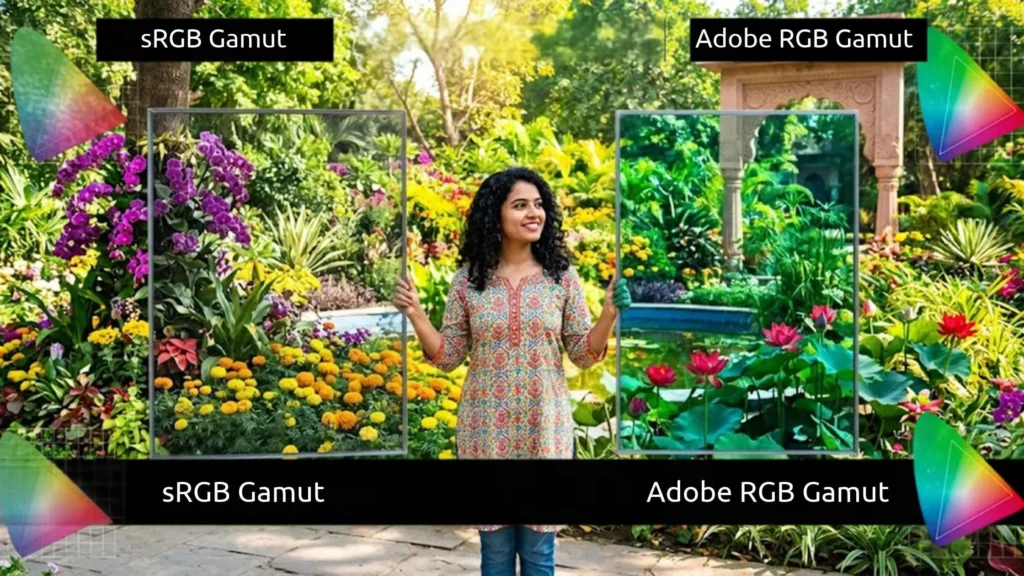
Gamut is the size of that rulebook. A wide gamut can describe more shades, especially bold greens, turquoise, and deep blues. A narrow one has to squeeze them. In other words, gamut decides how much colour your file can carry before anyone even looks at it.
So, what is sRGB? It is the standard colour space built for everyday screens, and nearly every phone, browser, and app expects it. Adobe RGB is a larger space designed with print in mind.
sRGB vs. Adobe RGB: Real Difference
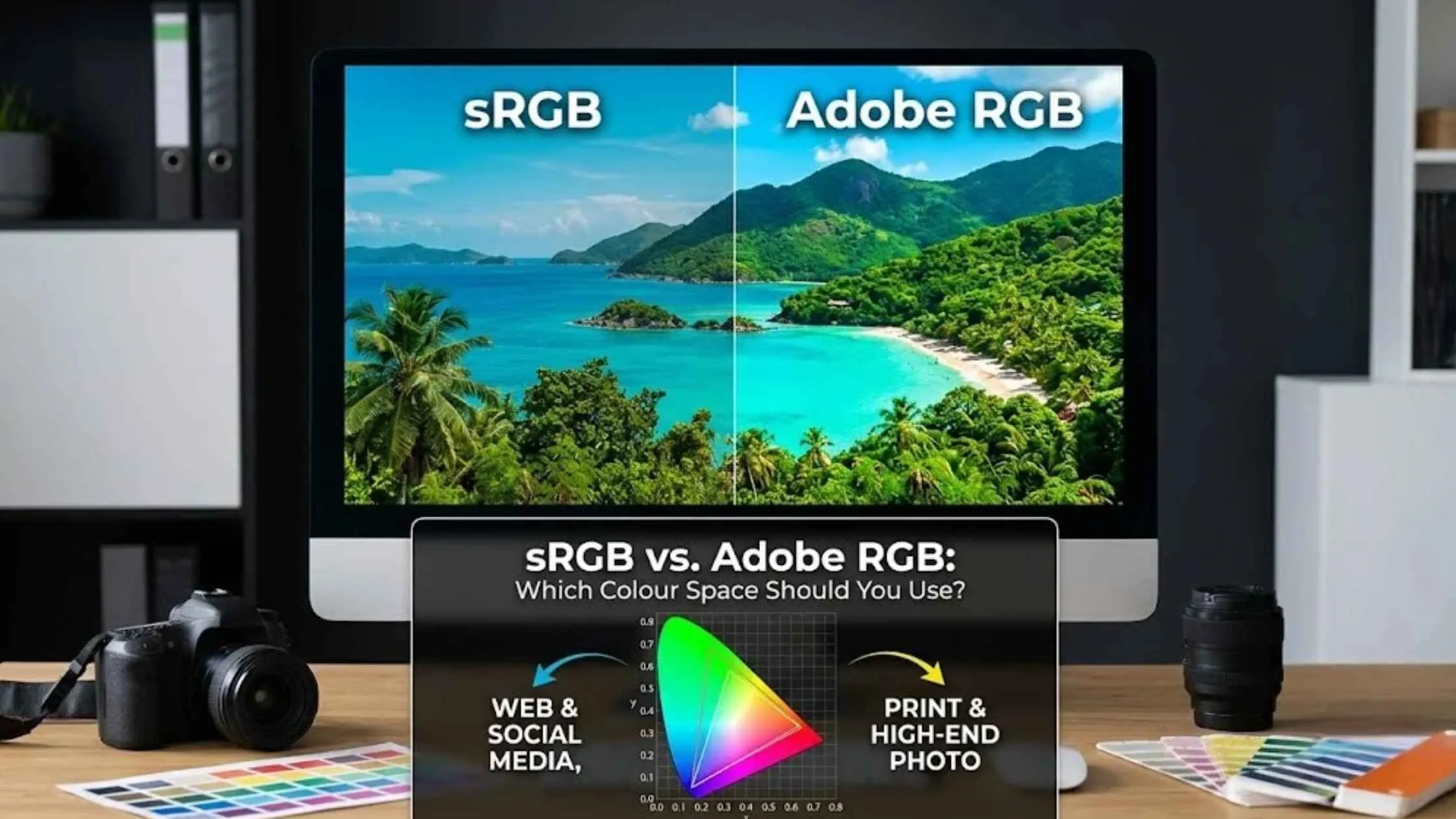
The most obvious difference between sRGB and Adobe RGB when placed side by side is the number of colors each holds. Adobe RGB has more room, especially in the greens and cyans, the leaves of a thick forest or clear, blue-green water. Think tropical waters or dense rainforests. Reds, yellows, and skin tones barely differ.
But there is a catch. A wider space only helps if your monitor, software, and printer can handle it. Otherwise, those extra colours never reach anyone’s eyes.
Here is the Adobe RGB vs sRGB picture at a glance:
| Feature | sRGB | Adobe RGB |
|---|---|---|
| Gamut | Standard | Wider (greens, cyans) |
| Works on | Almost every device and browser | Colour-managed setups only |
| Best for | Web, social, client previews | Compatible professional printing |
| Online use | Safe as it is | Convert to sRGB first |
| Main Risk | Less room for rich colour in print | Dull or shifted colour if mishandled |
In short, sRGB wins on compatibility. Adobe RGB wins on range, but only when everything in your chain can handle it. So when you weigh sRGB or Adobe RGB, start with where the image will be seen, not with which name sounds more professional.
When to Use sRGB
Choose sRGB whenever your photo will be seen on a screen you do not control. That covers most situations:
- Websites and portfolios: browsers expect sRGB.
- Instagram, Facebook, and other social platforms: they convert to sRGB anyway.
- Client galleries and email: you cannot know what device your client uses.
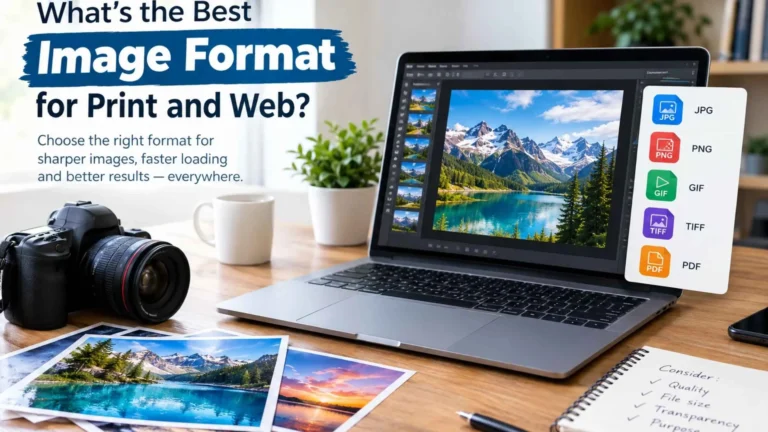
- Everyday printing: many photo labs and online print shops quietly assume sRGB files. If you are also unsure which file type to send them, see our guide to the best image format for print and web.
Simply put, if you are sending images out into the world, sRGB gives the most predictable result. Your blue sky stays blue, and your client’s skin tones stay natural.
It is also the right pick if you are a beginner or do not have a calibrated monitor. A calibrated screen shows colour accurately, and without one, Adobe RGB’s extra range is mostly guesswork.
When to Use Adobe RGB
Adobe RGB makes sense in a narrow set of cases. Before you switch to Adobe RGB, make sure each of these is already in place:
- You edit on a wide-gamut monitor that can show Adobe RGB.
- Your software is colour-managed, so it reads the profile correctly.
- Your final output is a professional print from a lab that accepts Adobe RGB.
Adobe RGB shines in a few specific places. For example, fine art printing, gallery prints, and high-end magazine work. In these setups, the extra greens and cyans can appear richer and more detailed in colour on paper. Accurate colour correction on a calibrated screen is what makes that extra range worth having.
The benefit depends on every step working together, from your monitor to your software to your printer. If even one link in that chain is missing, the extra colour disappears. You end up with a bigger file and no visible gain, and you risk colour problems later.
The Danger of the Wrong Colour Space
Here is a mistake that catches many photographers. Say you post an Adobe RGB photo straight to your website. The browser, expecting sRGB, reads the numbers the wrong way. The result? Dull, faded, slightly grey colours. Reds lose punch, and greens turn muddy.
The fix is simple: convert to sRGB before you share. Do not just “assign” a profile, because that only relabels the file without changing the numbers. A proper conversion remaps the colours so they look right.
Here is how to do it safely:
In Photoshop
Go to Edit > Convert to Profile, choose sRGB.
In Lightroom
When you export from Lightroom, set the Color Space to sRGB in the Export window. That’s all it takes.
Check the Result
Open the exported file in a browser and compare it with your original.
Keep your master copy in its original space, and export a separate sRGB version for sharing. That way, you never lose your best file. The same habit applies to colour grading: grade the master, then export an sRGB copy for the web.
Want Colours That Look Right Everywhere?
Getting the colour space right is only half the job. The edit matters just as much. Plexail corrects colour, balances tones, and retouches your photos so they look polished on every screen and in print. Our photo retouching services and Lightroom editing services handle colour-managed delivery in sRGB or Adobe RGB, whichever your client or lab asks for.
Ready to try it? Call +91 9819259097 today, send a few images, and see what clean, confident colour can do for your work.