Key Takeaways
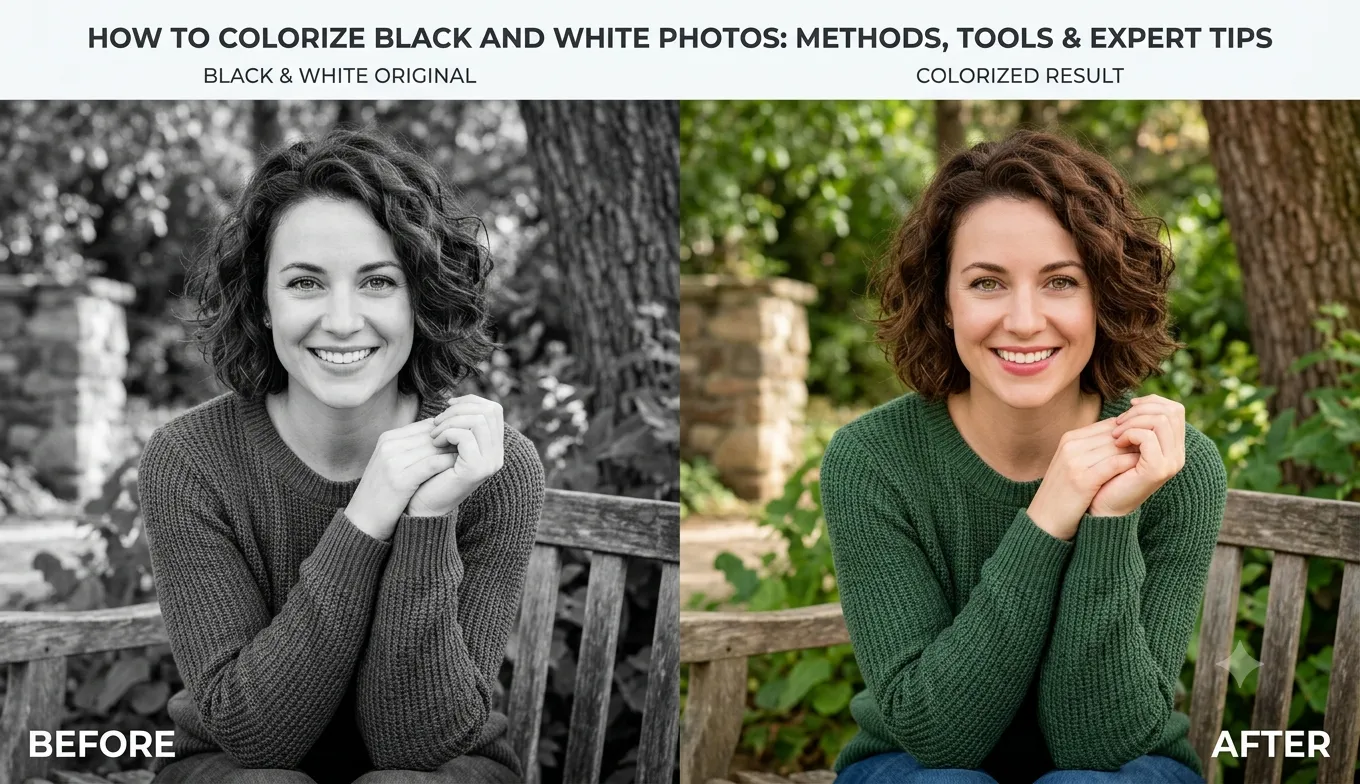
AI colorization is the fastest method to convert a black and white photo into a colorful one. It rarely takes more than a few seconds to get a satisfactory result. At the same time, manual editing provides better control over such elements as skin tone, clothes, and historical accuracy. In many cases, color accuracy is not of essence, and a plausible image is considered acceptable. Photoshop’s layer mask is the preferred tool for colorization, as it allows for the best balance between control and precision. Manual editing should be used in cases when the subject of the image requires a certain level of precision or when the photo is of historical value.To colorize black and white photos means digitally reconstructing plausible colors without losing their original details and appeal. AI colorization is the fastest option, while manual editing provides you more control over the final result if specific visual details, such as historical details, are of concern. It all depends on the image you want as an end result and the additional refinement that would be necessary for the photo.
It is essential to distinguish between two similar terms: colorization and restoration. The former implies adding new colors to the black and while image, and the latter fixes scratches, fading, tears, or other damage. Most often, both processes are combined to achieve outstanding results.
What is Black and White Photo Colorization?
Photo colorization refers to the act of adding color to black and white photos. Modern software are capable of analyzing skin tones, sky, grass, buildings, clothing and other elements of an image and assigning appropriate colors to them.
AI colorization works in a way of suggesting colors that could possibly fit in the image, while manual colorization requires a totally different approach as it means selecting colors first, then applying them using brush, layers, masking or any other available tools.
Both methods are unable to reveal the exact colors that were present on the original image, because black and white photographs were taken without color filter, so it was not possible to see colors on a photo. A red dress can look almost identical to a dark green one on black and white photograph, so colorization of such photos is not a restoration but rather a reconstruction of what could have been there.
A Simple Guide to Colorizing Black and White Photos
A tried-and-true workflow for anyone seeking to understand how colorize black and white photos works in real life is as follows:
- Start with a high-quality source, scan the original at high resolution.
- Clean the image. Remove dust, scratches, or noise before adding color.
- Choose a method. Automatic AI colorization for speed, or manual editing for precision.
- Apply color through AI processing or manual selections and brushwork.
- Refine tones and masks.
- Review carefully like check skin tones, eyes, and other features for unwanted coloration.
- Save the final image in a high resolution for further printing or sharing.

Method 1: AI Photo Colorization
AI colorization is best if you need the fastest plus easiest way to colorize. This works best if you are new to editing. It is best suited for casual use that do not require a professional appearance. One has to keep in mind that such solutions are not always accurate and can produce unexpected results when it comes to skin colors, clothing, plants, or the sky. The result should therefore always be double-checked.
Method 2: How to Manually Colorize a Black and White Photo
Colorizing photos manually usually involves working with separate layers and masks. The final appearance is far more in your control. One would typically work on separate objects such as the skin, the hair, the clothes, and the background one by one. You can also keep the colors subtle at first, then, as per the need, you can increase/decrease saturation.
How to Add Color to a Black and White Photo in Photoshop
A practical Photoshop workflow includes:
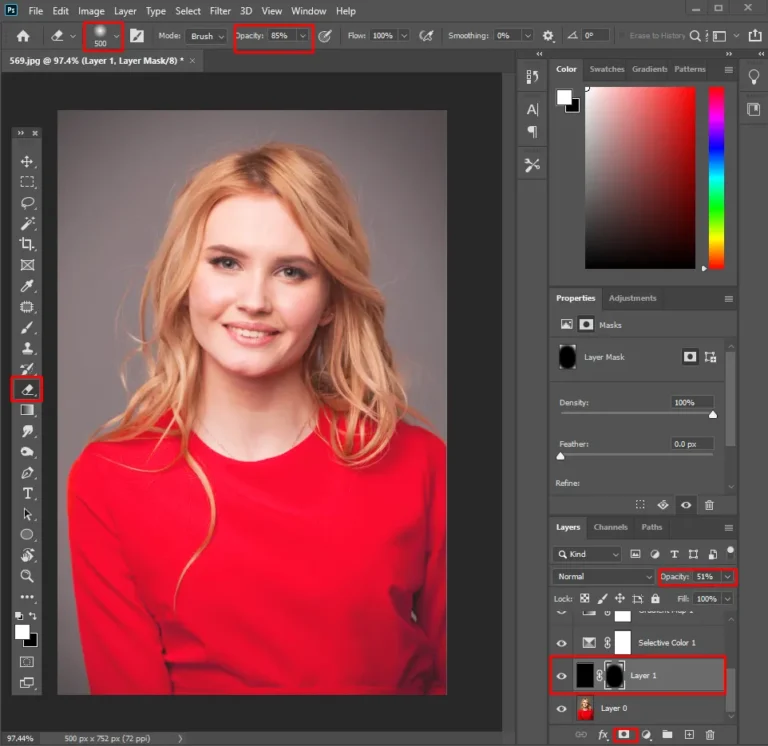
- Start by duplicating the base layer to preserve the original.
- Then create adjustment or color layers for individual areas.
- Use layer masks to keep colors within your boundary lines.
- Use the selection tool to sample the skin, hair, clothes, and background elements
- Refine edges with a soft brush at low opacity for smooth, gradual transitions.
How to Add Color to a Black and White Photo Without Losing Detail
One of the most common mistakes in photo colorization is treating color as if you are simply painting it onto the image. In your initial photo, there is already info stored in the grayscale. The areas of light and dark give the image its depth, facial definition, texture, and shadows.
To preserve them:
- Use layers whenever you can to make changes without altering the initial image
- Don’t mess with the important parts of the photo (use a mask)
- Don’t oversaturate the image
- Keep shadows and highlights
- Zoom in for detailed areas, but review the image at normal size too
- Make sure to keep a copy of the initial photo in grayscale

Common Challenges When You Convert Black and White Photo to Color
Colorizing an old image is not always straightforward.
Uncertain original colors: This is very common one. Some reference photos, family descriptions, uniforms, the location or the period of time may serve as a good basis for the colorization.
Damaged source images: Stains, scratches, missing pieces and faded colors may require extra restoration work.
Inconsistent skin tones: Skin in faces often tends to be over-saturated and turned to red, yellow or orange. The subtle changes are crucial to make the colors look natural.
Color bleeding: Inappropriate colors may penetrate the image through inaccurate masking.
Unrealistic saturation: overly vivid colors that look artificial.
AI vs. Manual Colorization: Which Method Should You Choose?
| Factor | AI Colorization | Manual Colorization |
|---|---|---|
| Speed | Very fast | Slower, more time-intensive |
| Control | Limited | High |
| Consistency | Can vary across an image | Consistent when done carefully |
| Skill Level | Low | Moderate to high |
| Detail Preservation | Good, but needs review | Excellent |
| Best use | Personal photos, quick previews | Archival, professional, and portrait work |
Frequently Asked Questions
How to colorize black and white photos?
How to color a black and white photo without making it look artificial?
How to Colorize a Black and White Photo in Photoshop?
Can AI accurately convert a black and white photo to color?
How to make a black and white photo color?
Can old damaged photos be colorized and restored at the same time?
A damaged photo should be restored (the restoration process includes removing any scratches, spots, or other imperfections) before being colorized, as the colorization process will generally have better results on a clean image.