Key Takeaways
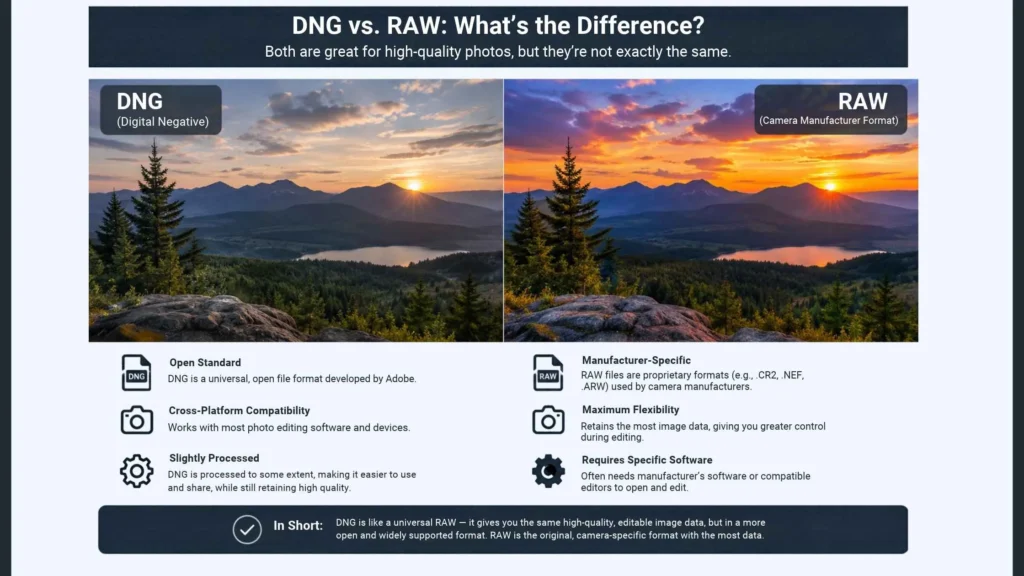
- DNG is an open format. This means any developers can provide support for it, so in the future it will be easier to use.
- RAW files are not an open format. This means that they will contain all the features developed by your manufacturers plus some extra features too.
- You will be able to reduce the size of your library by converting your files. However, this is a one-way process unless you include the original file.
- DNG files can include metadata showing what changes have been made and can also be smaller depending on compression.
- DNG is not a higher quality format; it is just a more easily portable format.
Introduction
If you’ve ever moved photos from your camera to your computer, then you’ll likely have seen RAW files. You may also have seen DNG files whilst editing and managing your images. Does it make a difference, and how do the two formats compare?
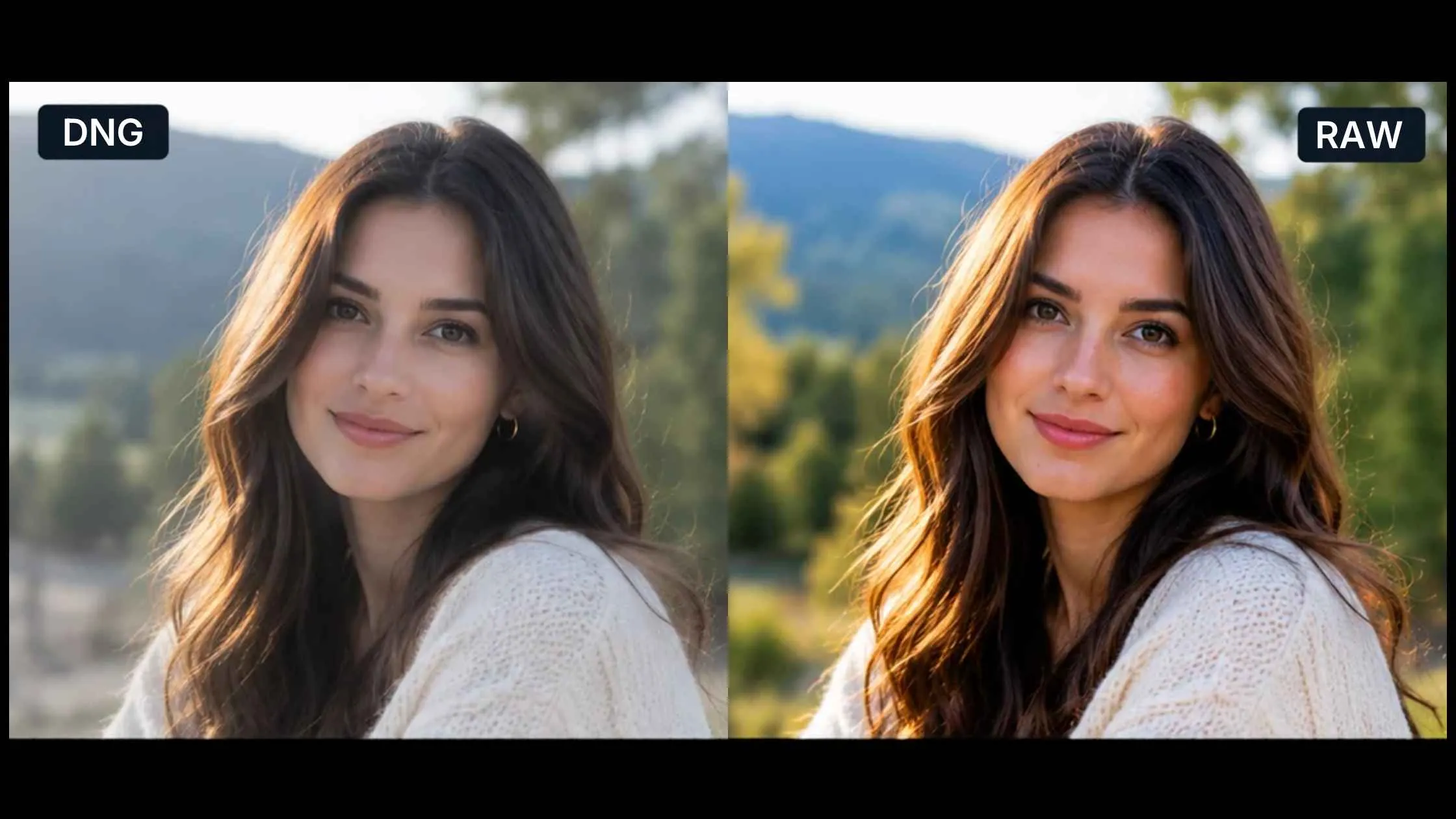
A RAW file is the unaltered data captured by your camera’s sensor, stored in a proprietary format. Adobe created the open standard RAW format known as DNG. You can convert your original RAW files into DNG format. Though the data itself is the same, there are differences in how it is stored. So, what is DNG format exactly, and when is it worth converting? Let’s break it down.
What Is a RAW File?
The basic idea behind RAW files is that they contain the raw data from your cameras sensor when you take a photo. This data is captured when taking a photo and contains much more data than would be found in a finished JPEG file.
This allows you to make fine adjustments to your exposure, white balance, highlights, shadows and colors.
For example, if you took a photo during sunset and the sky was beautiful but your foreground was too dark, using a RAW file allows you to recover more information from your shadow details and make changes to the colours. Pulling shadows up that far can introduce grain, so it helps to know how to reduce noise in Photoshop as well.
However, each manufacturer has their own format for how they store this data. Canon use CR3, Nikon uses NEF, and Sony uses ARW. The main benefit of using these file types is that they will contain manufacturer-specific information that can be useful to certain camera profiles or editing functions.
What is DNG Format?
DNG stands for Digital Negative. Adobe released this format as a more standardised format for storing RAW data from digital cameras.
In simple terms, a DNG file contains RAW image data along with metadata about your image and how it has been processed. Software that supports this format can utilise this data to aid with editing your photograph.
As this format uses a publically available specification, it means software developers can easily implement support for this format.
This can be useful for photographers who want to work with multiple editing applications, or if you are looking to archive your images over a number of years. If you are still choosing a tool, our round-up of the best photo editing software compares the main options.
DNG vs. RAW: Pros and Cons
| Feature | Proprietary RAW | DNG |
|---|---|---|
| Compatibility | Requires software to be updated for each camera | Works with most modern editors |
| File size | Varies depending on camera and compression settings | May be smaller with appropriate compression settings |
| Edits | Stored in a sidecar file | Can be stored inside the file |
| Camera extras | Fully included | Some brand-specific features may be missing |
| Long-term access | Varies depending on manufacturer | Public specification, wider support |
| Reversibility | Original as shot | Can embed the original RAW (larger file) |
Should You Convert to DNG?
It really depends on your workflow. However, in some situations you may find converting your photos to DNG is suitable for you if:
- You have a large photo library.
- Use multiple cameras or editing programs.
- Like using a standard format when archiving.
- Want to try out the smaller file sizes when using the various compression options available.
If you use manufacturer-specific processing, special software for your camera, or want to keep your original files exactly as they are, then you may prefer to keep the original RAW format.
Overall, it can be good to try converting some images to DNG. Then make sure they open in your usual editing software and that you can use the profiles, settings and metadata you prefer.
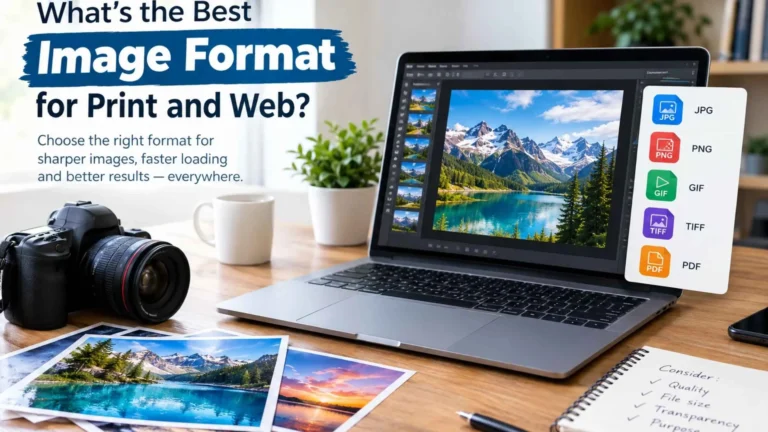
No matter what format you go for, if the photos are important, make sure you have another backup. And once an image is final, pick the delivery file carefully; our guide to the best image format for print and web covers JPEG, TIFF and PNG.
How to Convert to DNG?
Adobe Digital Negative Converter
Download and open the free tool from Adobe. Select the folder containing your RAW files. Choose the location for your new DNG files. If you want to include your original RAW file or change your compression settings, click on the preferences. Click Convert and let it run.
Lightroom
Open up your import window. Select ‘Copy as DNG’ from the top. Select your images and import as normal. Lightroom will convert them. Plexail’s Lightroom editing services work from either RAW or DNG, so the format you choose will not limit the edit.
Need Your RAW or DNG Files Edited?
Send us your RAW or DNG files and Plexail’s photo editing services team will handle colour, exposure and retouching, then deliver in the format you need. Call +91 9819259097 or email info@plexail.com to get started.