Key Takeaways
- Small reflections are usually fixed by sampling clean areas with the Clone Stamp or Healing Brush.
- If one lens is clear, copy that eye, flip it, and blend it over the bad one.
- Mild glare responds well to gentle darkening and a Curves adjustment.
- Always remember to work on separate layers to allow greater flexibility in editing.
- Prevention (angling the light, tilting the frames, a polariser) beats any repair.
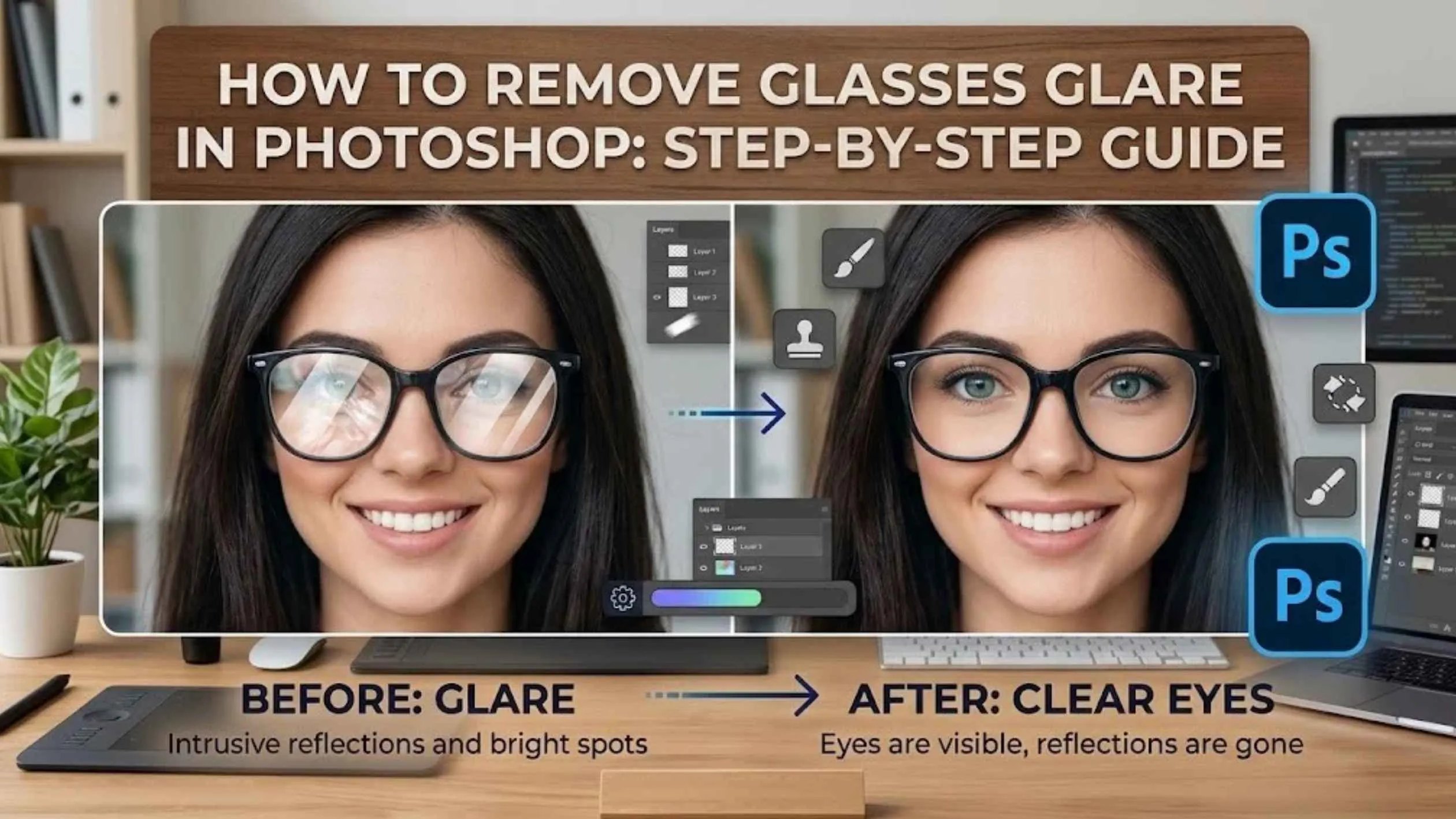
The shot is perfect, the lighting looks great, and your subject has a natural smile. So you opened the image to view the shot and noticed a glaring white patch on the corner of the model’s eye. Reflections on glasses can completely wreck an otherwise perfect photo. There is no need to reshoot, due to the right Photoshop tools that will reduce reflections and bring back the contrast and detail to the eyes.
The process to remove glare from glasses in Photoshop is based on the details present in the bright spots, which vary from case to case. Simple reflections can often be easily cloned away, but stronger reflections necessitate a more careful approach and possibly the inclusion of external detail to reconstruct the missing elements.
So, the more complex thing here is that if the glare fully hides the eye, Photoshop cannot recover details that were not captured at the time of shooting. You will need to retake it. This explains how to remove glare from glasses in Photoshop, starting with simple fixes first, more advanced editing techniques next, and practical ways to prevent glare during your next shoot.
Why Glasses Glare Is Hard to Fix
Glare is not a stain sitting on top of the photo. It is reflected light that overwhelmed your camera’s sensor at that spot, turning it into pure white with no detail. Mild glare may leave some features visible, making them easier to recover in Photoshop. But when a reflection completely washes out the eyes, the original details may be lost. Think of it like a handwritten note: a faint smudge can be cleaned up, but if the ink has completely covered the words, you’ll need to reconstruct what’s missing.Method 1: Clone and Healing Tools
This method can be used in a situation where there is a small area of reflection, for example, on the corner of the lens or a small window.
Steps to Remove Small Reflections.
- Always make sure to create a copy of the background so that the original one stays untouched.
- To remove all glare, use small strokes of paint on parts that you want to remove.
- Zoom in fully to see the pixels.
- Alt/Option + click a clean spot close by the glare, preferably of a similar color and brightness.
- Using a soft round brush with an opacity of between 30 and 50 percent is recommended.
- Always resample while cloning. Painting over the same spot several times with a cloned section will look fake.
Method 2: Borrow the Other Eye
This one feels like magic; it is my favorite when something happens only on one lens, a common case if the light hits one eye.
Steps to Copy and Blend the Other Eye
- Use the Lasso Tool with a feather of about 2-3 pixels to select the eye on the good side, making sure to include some of the skin and the eyebrows.
- Copy it to a new layer, and flip it horizontally.
- Place the new eye on the damaged one, making sure to align the pupils first. Use the Free Transform to rotate and scale it until the corners match.
- Add a layer mask and start painting away the mask with a soft black brush until the eye blends.
Match the Catchlight and Facial Details
The catchlight, or the little bright spot on the eye, is the most critical detail; make sure that it is in the same place on both eyes. It should be there as the light falls on the same place in both lenses.
The faces are rarely perfectly symmetrical, so you may want to spend some time editing on this step. It may appear that the flap of the eyelid on one eye is lower than the other; make sure to nudge the copied eye so that it matches the good side of the face.
Method 3: Dodge, Burn and Curves
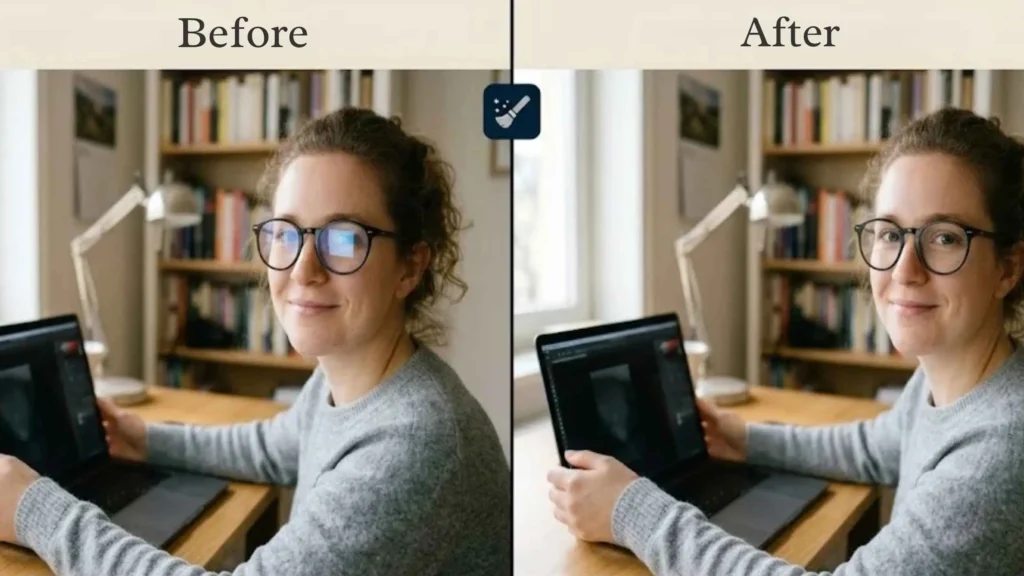
When learning how to remove glare from glasses in Photoshop, remember the goal is not always to eliminate every reflection. If the glare appears dull, and you can see the eye through it, you can try to use burn tools to darken the spots on the lens. First, create a new layer with 50% gray fill, and set the blending mode to soft light.
Adjust Highlights and Restore Eye Detail
Next, create a curved layer, set it to a mask, and pull the highlights down slightly. If it makes the eye too dark, dodge the iris to brighten it. Everything in moderation, as you can see; the glare does not mean that the lens is fully exposed; some parts may be seen through it, and that is okay.
Preventing Glare When Shooting
I have spent enough hours editing photos to understand that the best way to remove glare from a photo is to avoid it. Here are a few useful techniques:
Angle the Light
Move your lamp or flash to the side and slightly above the subject, rather than pointing directly at the subject. Flash aimed straight at the face can also cause red eye, which a good red eye remover can fix.
Tilt the Glasses
Ask your subject to lower his chin or simply bring the glasses down at a noticeable angle.
Change Your Position
Moving a little to the left or right can be enough to eliminate glare.
Use a Polariser
This filter can help you eliminate some glare, though it helps less on glasses than on windows or water.
Take Extras
Shoot a few frames with the glasses off or at different angles, so you have a clean eye to borrow later.
Need Glare Removed from a Whole Batch?
Plexail’s portrait retouching team can remove glare from glasses in Photoshop across entire headshot sets, with natural eyes and no pasted-on look. See our photo retouching services, call +91 9819259097, or email info@plexail.com.