Key Takeaways
- Identify the noise first. Luminance noise is grain, and color noise is random colored specks.
- Choose the Reduce Noise filter for fast cleanup on exported JPEGs and already flattened images.
- Choose Camera Raw when you want precise control over luminance and color noise.
- Try AI Denoise on high-ISO RAW files, night shots, and anything where detail matters.
- Denoise before sharpening, since sharpening makes left-over noise louder.
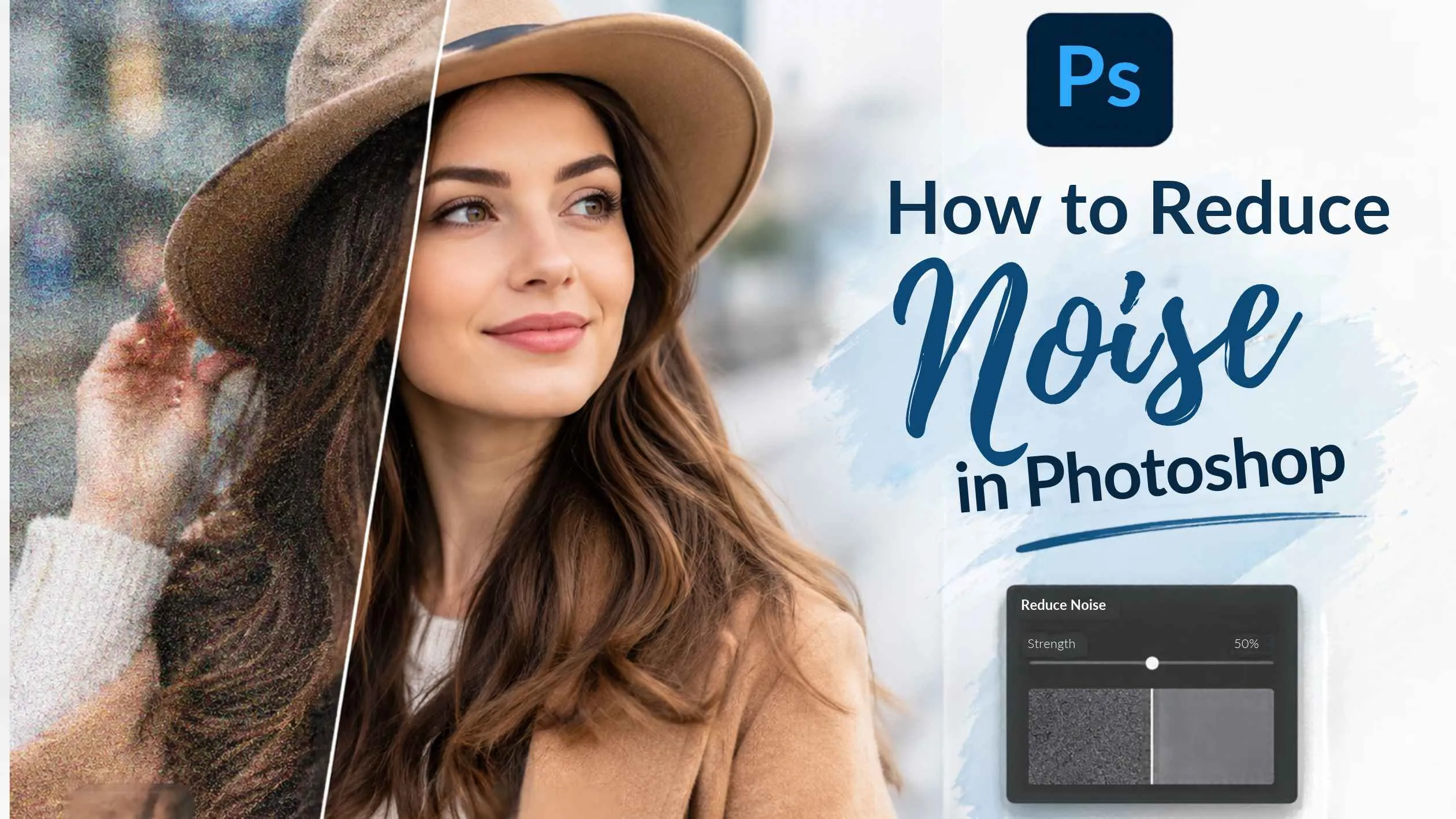
Noise can make a strong photograph look gritty, uneven, and unfinished, especially when the light was poor. The quickest way to remove noise in Photoshop is the Reduce Noise filter for JPEGs, or Camera Raw’s noise controls for RAW files, with AI denoise stepping in for stubborn high-ISO shots. The goal is not to erase every speck of grain. It is to clean the image while protecting texture, edges, and natural detail.
That balance is the core trade-off of any denoise tool: the harder you smooth, the more fine detail you risk losing. Below, we cover how to remove noise in Photoshop: what causes it, the main methods, where AI fits in, and how to prevent the problem at the shoot.
Why Do Photos Get Noisy in the First Place?
Noise appears when a sensor can’t gather enough light, so the camera amplifies a weak signal, and the random speckles come along with it. The usual culprits are high ISO, underexposure, long exposures, small sensors, and dim conditions. A little noise is normal. It only becomes a problem when it spoils skin, skies, shadows, or fine textures.Types of Image Noise
| Noise type | What it looks like | Where it shows most |
|---|---|---|
| Luminance noise | Grey, black, or white grain | Shadows, dark backgrounds, smooth areas |
| Color noise | Red, green, blue, or purple specks | Underexposed areas, low-light shots |
Zoom in to 100% before you touch a slider. At that size, it’s easy to tell grain from color specks, and you’ll often find both.
Method 1: Quick Clean-Up with the Reduce Noise Filter
Understanding the Reduce Noise Settings
- Strength: removes luminance grain. Raise it gradually, because too much softens the photo.
- Preserve Details: protects edges and texture. Lift it if skin starts looking plastic.
- Reduce Color Noise: clears colored specks without changing the photo’s real colors.
- Sharpen Details: adds mild crispness back, so use it sparingly.
Recommended Workflow for the Reduce Noise Filter
A reliable order is color first, grain second. Raise Reduce Color Noise until the specks fade, increase Strength until the grain settles, then lift Preserve Details just enough to rescue texture. Click and hold the preview to compare against the original.Use Advanced Settings for More Precise Noise Reduction
If one area still looks rough, switch to Advanced and open the Per Channel tab. The blue channel is usually the noisiest, so you can treat it harder without flattening the others. And because this is a smart filter, you can paint on its mask to keep eyes, lips, and hair sharp while smoothing skin and backgrounds.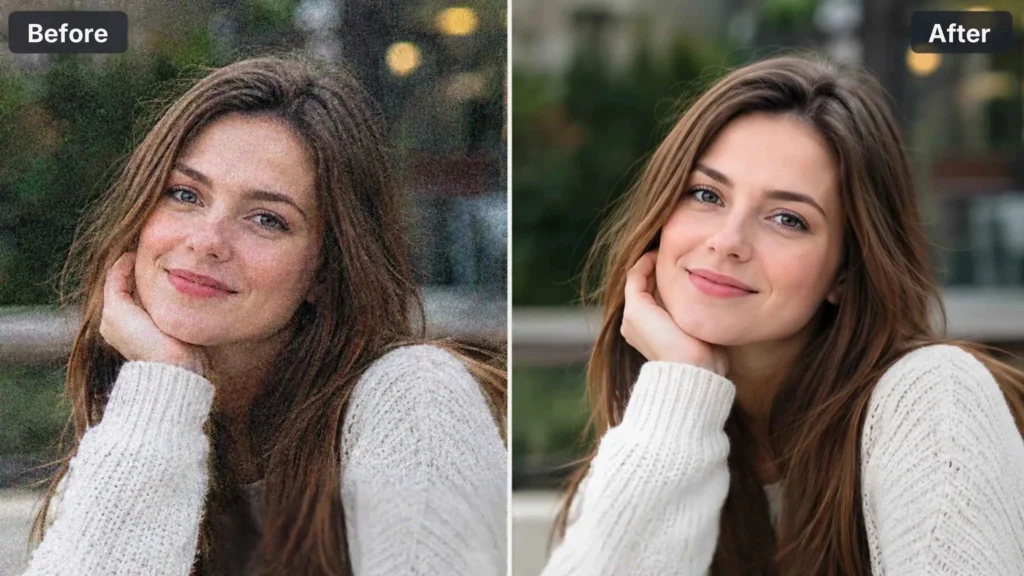
Method 2: Take Finer Control in Camera Raw
RAW files respond better here. Open the file in Camera Raw, or use Filter > Camera Raw Filter on a duplicate layer, and head to the Detail panel. The noise sliders are split into luminance and color groups:Understanding Camera Raw Noise Reduction Sliders
- Luminance: reduces grain.
- Luminance Detail: protects fine texture.
- Luminance Contrast: brings back the punch that smoothing takes away.
- Color: removes colored specks.
- Color Detail: protects color near edges.
- Color Smoothness: blends color across flat areas.
Recommended Camera Raw Noise Reduction Workflow
Here’s a workflow that works well. Push the main Luminance slider high so the effect is obvious, fine-tune Detail and Contrast, then pull Luminance back until the result looks natural. The color sliders rarely need more than the defaults, although color can be raised more boldly because color noise barely affects sharpness.Apply Noise Reduction Selectively with Masks
For extra precision, add a mask over the sky or deep shadows and apply noise reduction only there. Textured areas stay untouched, which is the easiest way to avoid that waxy, over-processed look.Method 3: Let AI Denoise Handle the Difficult Files
When sliders start costing too much detail, AI Denoise is the next step. In Camera Raw, open the Detail panel and choose Denoise (or use Enhance > Denoise), set an amount, and let it process. It creates a new DNG file, so your original stays safe, and Lightroom offers the same tool. Rather than simply blurring, it has learned from pairs of noisy and clean images, so it separates noise from real detail far more intelligently.
When to Use AI Denoise
It shines on:
- Night and low-light photography
- Indoor events and weddings
- Wildlife shots taken at high ISO
- Astrophotography and heavily brightened shadows
Limitations of AI Noise Reduction
There are trade-offs, though. Processing is slower, files are larger, and strong settings can over-smooth or even invent texture, so keep the amount moderate and compare with the original. Third-party photo noise reduction software, such as Topaz Photo AI, DxO PureRAW, or ON1 NoNoise AI, is also worth testing, since many tools work as Photoshop plugins. For light grain, manual tools remain quicker and perfectly good.Need Professional Photo Noise Reduction?
Short on time, or unsure how to remove noise in Photoshop without losing detail? Plexail’s photo editing team can deliver clean, natural-looking images without the trial and error of photo noise reduction software. Call +91 9819259097 or email info@plexail.com.
Shoot Smarter, Edit Less
The best noise reduction starts before editing. Small decisions at the shoot make a big difference:
- Use the lowest ISO the light allows.
- Expose correctly, or slightly bright, instead of rescuing dark frames later.
- Use a tripod for long exposures rather than raising ISO.
- Shoot RAW, which gives your software more data to work with.
- Denoise first, then sharpen only the areas that need it.