Key Takeaways
- Edit in 16-bit and export pictures in 8-bit as JPEG for web or print.
- 16-bit depth helps you avoid color banding when making extensive edits.
- Make sure you have adequate space on your hard drive because 16-bit images require twice as much space.
- 16-bit depth requires more processing power and memory depending on the image format and compression level.
So, What Does 8 vs. 16 Bit Mean?
Consider a dimmer switch. You can feel each jump as you click through a few dozen brightness settings on a cheap one. A good one glides so effortlessly that you can’t even see the steps. The same is true for tone and bit depth.
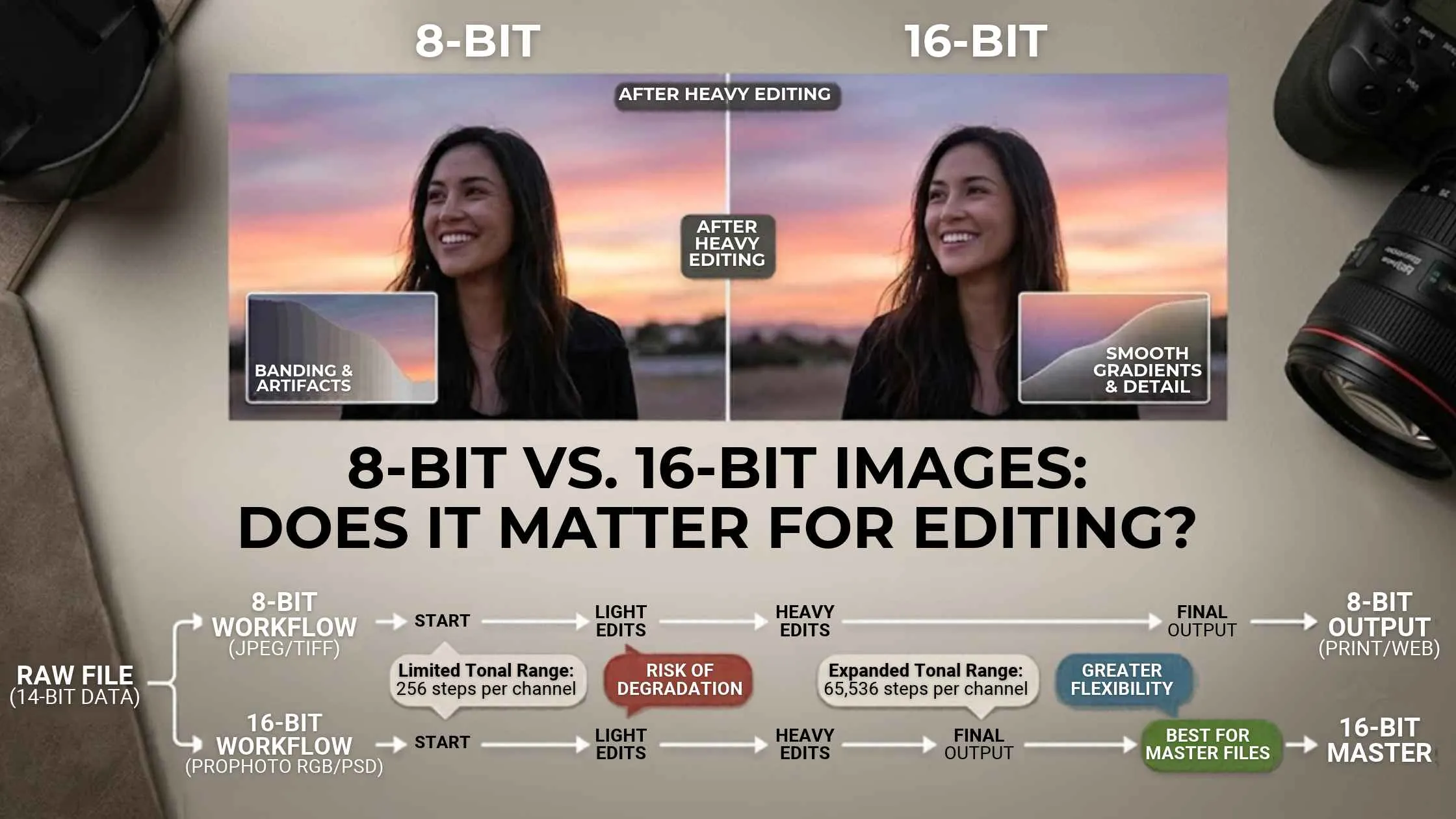
Each channel (there are three: red, green, and blue) has a range of colors from black to white, indicated by a number. In an 8-bit image, that number can have 256 different values. 16-bit, on the other hand, has 65,536 different values. However, that doesn’t mean that just because it’s a 16-bit image, it’s going to automatically look better than an 8-bit image. The source material, what edits were made to it, and the export settings all factor into how good an image quality is.
8-Bit vs. 16-Bit: What’s the Real Difference?
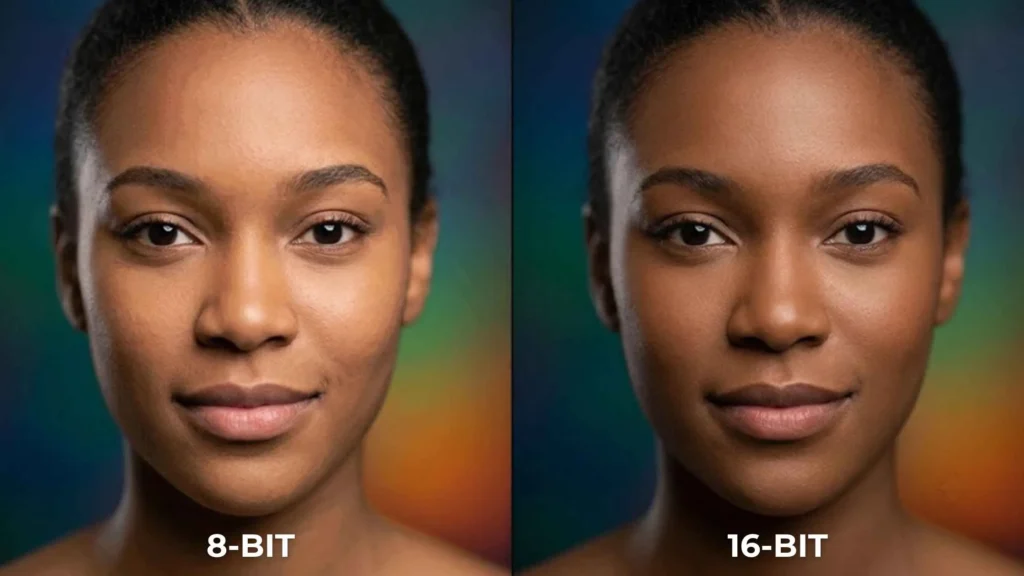
Both formats are pretty amazing, but it is easy to see the difference when you start pushing an image beyond its original appearance. It is important to make distinctions, though: both images were created using the same camera, captured at the same moment in time, and edited in the exact same way; the only difference is that the right image was a 16-bit image, while the left was an 8-bit image.| Feature | 8-Bit Image | 16-Bit Image |
|---|---|---|
| Tonal levels per channel | 256 | Up to 65,536 |
| Flexibility for edits | Good for most things | More flexibility for heavy lifting |
| Color banding risk | Can be higher after heavy edits | Generally lower during editing |
| File size | Usually smaller | Often larger |
| Best suited for | Web, social media, and final JPEGs | Detailed retouching and advanced workflows |
When Does the Difference Actually Show?
Suppose that you have edited the landscape with a clear sky. You have enhanced the contrast, made the highlights darker, and improved the colors so that the sky has a nice blue and white appearance.
In an 8-bit file, the range of colors is more limited, and you may see some bands in the sky instead of a smooth transition. This is called color banding.
A 16-bit file initially has more tonal information, so you have more flexibility to make adjustments before visible tonal steps appear.
The same is true for lightening the dark spots, adjusting the lighting, or retouching a portrait to make it more realistic but still better than the original. However, using a 16-bit image is not a guarantee that you will not see banding in your images. So, extensive editing, limited source information, display limitations and saving the image as 8-bit can compromise your beautiful image. This is why the 8 bit vs 16 bit question matters most while you are editing, not at the moment you look at the finished file.
Does Bit Depth Change File Size?
Yes, it does. An uncompressed 16-bit RGB image will have approximately twice as many bytes as the same 8-bit image.
Let’s imagine that you have a 6,000 x 4,000 pixels RGB image. How many megabytes (MB) does it weigh approximately? Without considering additional image data such as headers or other information, the basic pixel data for this image would be:
- Pixel dimension: 6,000 × 4,000 = 24,000,000 pixels
- 8-bit RGB: 24,000,000 × 3 channels × 8 bits ÷ 8 = 72 MB
- 16-bit RGB: 24,000,000 × 3 channels × 16 bits ÷ 8 = 144 MB
But this is an approximate value that only considers the image data. In actuality, image files are frequently larger due to additional data contained within the image or compression algorithms (TIFF, JPEG). However, you should be aware that larger files will require more RAM. So if you often work with large images and have several layers, you need to consider how much memory and hard drive space your computer has.
When Should You Use 8-Bit vs. 16-Bit?
It is all about your choice when working with the photographs.
When to Choose 16-Bit
Major exposure and tonal adjustments.
Landscape photography with lots of skies and gradients.
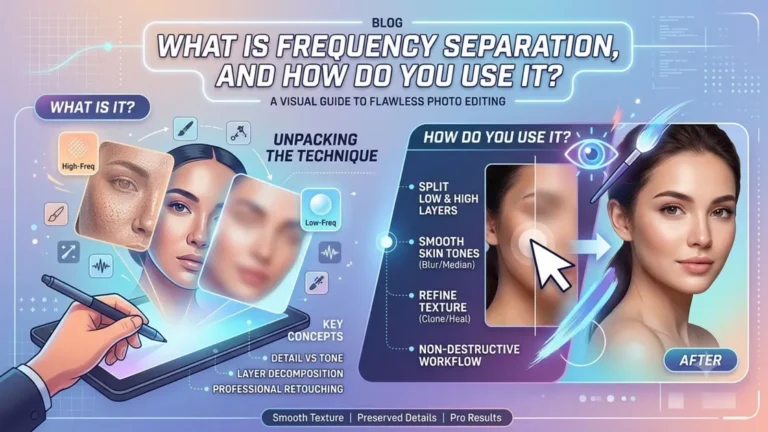
Retouching portraits in meticulous detail. Techniques such as frequency separation stack many layered adjustments, which is exactly where 16-bit helps.
Heavy composite work or multiple rounds of editing and adjusting.
When to Choose 8-Bit
- Final output JPEGs for websites or social media.
- Straightforward, basic edits.
- Smaller files for sharing and delivery.
- Situations where you don’t need the extra tonal precision.
For most people, a good approach is to capture RAW files, edit using a high-precision workflow, and export an 8-bit JPEG when the image is ready to share. RAW images will often carry more of your camera’s original depth than a processed JPEG would but usually it’s not a straight swap since it’ll depend on both your camera and the file type.
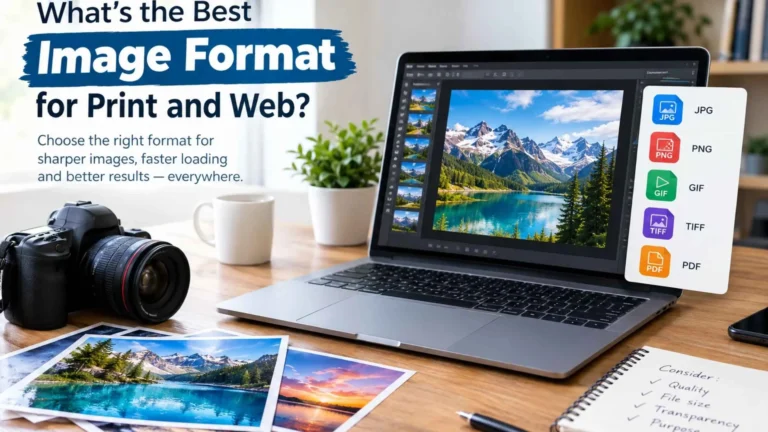
For professional printing or advanced editing work, you might want to go with a 16-bit TIFF for the final image. Check with your printer or other professionals to see which method they recommend before proceeding. Our guide to the best image format for print and web explains when a TIFF is worth the extra size over a JPEG.
How to Change Bit Depth in Photoshop and Lightroom
It is pretty simple, although it is important to remember that you won’t be able to recover information you have lost by converting an 8-bit image to a 16-bit one.
How to Change Bit Depth in Photoshop
- Open your image in Photoshop, then go to Image > Mode in the top toolbar.
- Select 16 Bits/Channel or 8 Bits/Channel.
- Then continue editing or save a copy in whichever mode you’d like to use.
If you are working with a RAW photograph, it is probably best to open it up in Adobe Camera Raw first, then select a bit depth for your working space before proceeding to Photoshop. New to the software? Start with our beginner’s guide to photo editing and come back to bit depth once the basics feel comfortable.
How to Export Images in Lightroom
Lightroom uses very high precision for internal processing, so you don’t have to worry about switching between 8-bit color depth and 16-bit color depth for your entire editing process, the way you do in Photoshop.
Instead, simply choose the bit depth for exporting your photos in any supported format:
- Select the images you want to export.
- Open the Export window.
- Choose a desired format in which you want to export your photos (e.g., TIFF).
- Set the bit depth to 8 bits or 16 bits in the Bit Depth menu.
- Proceed to export your photos.
Need Heavy Edits Done Right?
Plexail’s photo retouching services team works in 16-bit for colour-critical retouching and composites, then delivers clean 8-bit JPEGs or 16-bit TIFFs to your spec. Explore our photo editing services, call +91 9819259097, or email info@plexail.com.