Key Takeaways
- Frequency separation splits an image into a texture layer and a color-and-tone layer.
- Use it to clean blemishes, soften color patches, and reduce distractions without flattening skin.
- The golden rule is simple: never blur or smooth the texture layer.
- It works best for close-up portraits, beauty images, and detailed product photos.
- Subtle edits look professional; heavy smoothing usually looks obvious and unnatural.
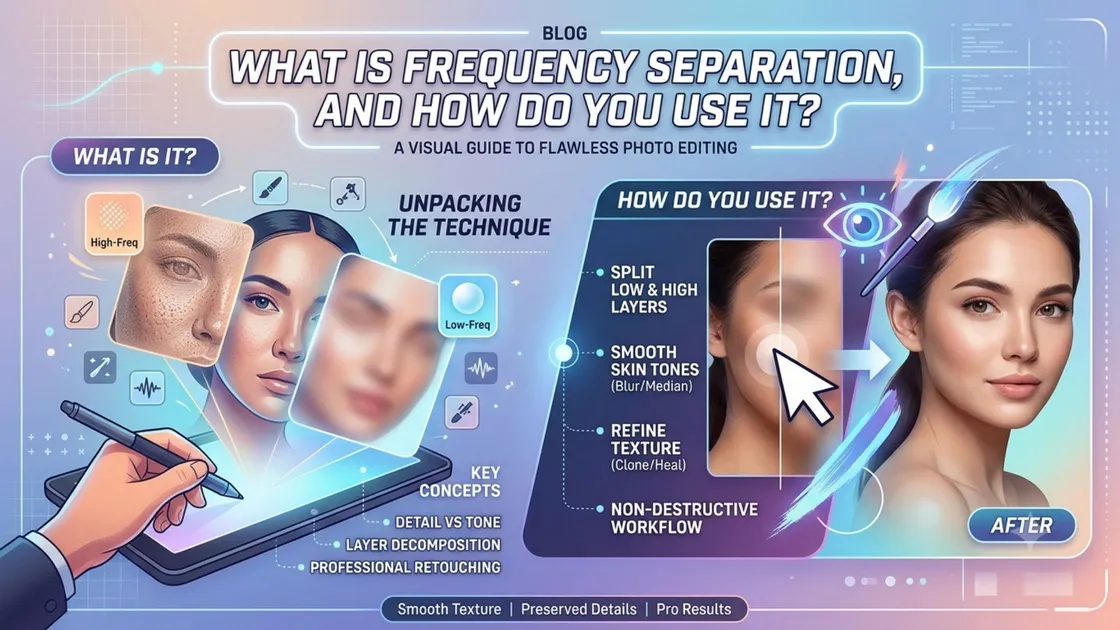
Frequency separation splits a photo into two layers: one for fine texture (high frequency) and one for color and tone (low frequency). That means you can smooth skin or surfaces without wiping out detail. Retouchers rely on it because pores and fine lines stay intact, so the finished edit still looks like a real person.
A plain blur can’t do that. It softens everything at once and leaves faces looking waxy. This frequency separation Photoshop guide covers what the technique is, how to set it up, how to use it step by step, and the mistakes that give retouching away.
What is Frequency Separation?
Every photograph contains two kinds of visual information.
- High-frequency details are the small, sharp elements such as pores, fine lines, fabric weave, eyelashes, scratches, and blemishes.
- Low-frequency information captures broader color and tonal changes, such as shadows, highlights, redness, uneven skin tone, and soft transitions across the face.
Frequency separation puts these two types of information on separate layers. It is like tracing paper over a photograph. The paper can reveal the broad shapes and colors underneath, but the fine lines and details stay separate. Once divided, you can correct one without disturbing the other.
If a client has a passing blemish, you can remove it from the texture layer while leaving the surrounding skin tone untouched. If their cheeks look unevenly red, you can soften that color shift on the tone layer. The result is cleaner skin that still looks like real skin.
This is why frequency separation Photoshop workflows remain common in portrait and beauty retouching: they give editors precision while preserving the details that make a person look human.
How to Set Up Frequency Separation in Photoshop
Keep your original background layer untouched so you can always go back. Then:
- Open the image and press Ctrl/Cmd + J twice to make two copies.
- Name the lower duplicate “Low” and the upper duplicate “High.” Some editors call them “color/tone” and “texture,” which can be easier to remember.
- Select the Low layer, then go to Filter > Blur > Gaussian Blur.
- Increase the radius slowly until the fine texture disappears, but the overall shape of the face or product remains clear. For many portraits, a radius between 4 and 8 pixels is a sensible starting point; product images may need a larger value depending on the level of detail.
- Select the High layer, then open Image > Apply Image.
- Choose the Low layer as the source, then use the settings that match your file’s bit depth.
- Click OK, then change the high layer’s blend mode to Linear Light. Your image should look normal again, but the texture and tone are now separated.
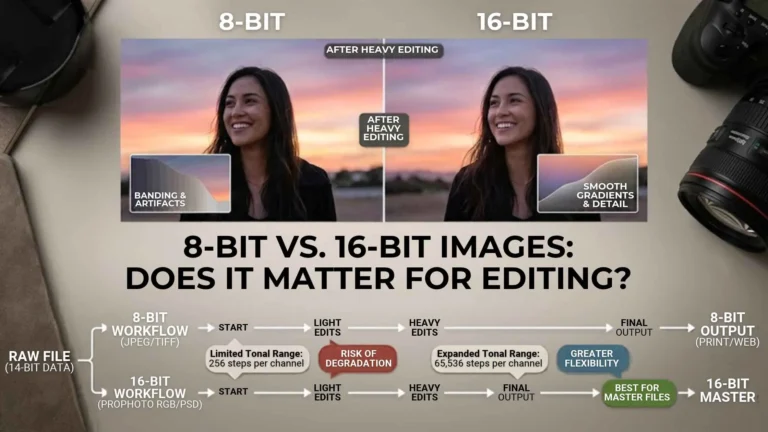
8-Bit vs. 16-Bit Images
The Apply Image settings change depending on whether your file is 8-bit or 16-bit. Check this under Image > Mode before you begin.| Image bit depth | Apply image settings |
|---|---|
| 8-bit | Source: Low; Mode: Subtract; scale: 2; Offset: 128; Invert: unchecked |
| 16-bit | Layer: Low; Blending: Add: Scale: 2; Offset: 0; Invert: checked |
These settings matter because Photoshop stores tonal information differently at each bit depth. Using the wrong formula can create strange grey layers, harsh edges, or an image that does not rebuild correctly.
How to Use Frequency Separation Step by Step
With the layers ready, your frequency separation Photoshop workflow gives each one its own job.
Texture layer (High)
Use the Spot Healing Brush, Clone Stamp, or Patch Tool to remove blemishes, dust, and stray hairs. Work at 100% zoom with small, careful strokes. You’re tidying up, not erasing every pore or freckle.
Color layer (low)
This is the layer to use if you’re wondering how to smooth skin in Photoshop without losing realism. Take a soft brush at 10 to 30% opacity and sample from nearby clean skin, or use a mask with a lightly blurred copy. Build up gradually. Redness and uneven shadows ease out while the skin stays textured, which is the goal when you smooth skin in Photoshop.
Check as you go
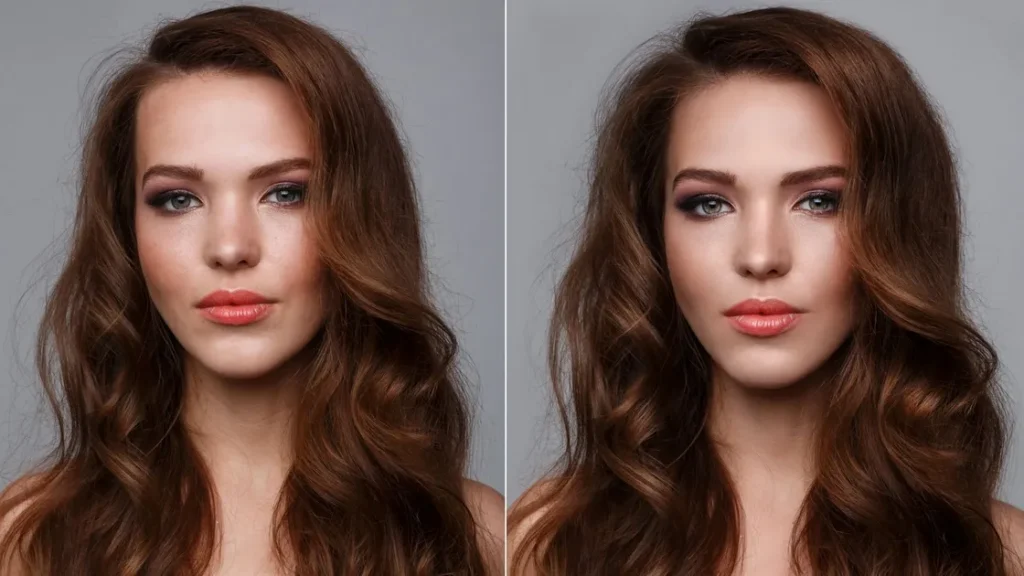
Zoom out every few strokes. Something that looks fine at 100% can seem blotchy at normal viewing size. Skilled skin retouching in Photoshop never announces itself.
Common Frequency Separation Mistakes
Even experienced editors can overdo this technique. Watch for these issues:
- Over-smoothing the skin. If pores disappear and the face looks plastic, you have edited too much. Preserve texture and make smaller corrections.
- Editing the wrong layer. Healing on the low layer will smear texture; blurring on the high layer will destroy detail. Always check which layer is active.
- Using too much blur. A very high Gaussian blur radius can soften facial structure, hairlines, and shadows. Stop once fine texture disappears, but major shapes remain.
- Skipping masks. Masks let you apply corrections only where you need them. They make it easier to refine or reverse an edit later.
- Retouching before basic adjustments. Complete exposure, white balance, cropping, and other global edits first. Major dodge-and-burn work usually works better after frequency separation, so your tonal shaping isn’t disrupted.
When to Use It and Alternatives
Frequency separation is especially useful for:
- Close-up portraits and beauty photography.
- Wedding photo editing and event images where skin needs gentle cleanup.
- Product close-ups involving leather, fabric, metal, packaging, or reflective surfaces.
- Images with temporary blemishes, dust, scratches, or uneven color patches.
That said, it is not necessary for every photo. For light retouching, dodge and burn can be a better option. It shapes light and shadow without separating texture from tone, which often produces a softer, more organic result. Use frequency separation when you need to correct texture and color independently; use dodge and burn when you mainly want to refine highlights, shadows, and facial dimension.
Want polished portraits or product images that don’t look over-edited?
Our photo retouching team uses frequency separation Photoshop workflows to keep skin and product surfaces natural. Contact Plexail on +91 9819259097 or info@plexail.com.