Key Takeaways
- For small or background shadows, use the Clone Stamp or Healing Brush to paint them out cleanly.
- For shadows on faces and skin, use the Dodge tool or a masked Curves layer to lighten them gently.
- For big or tricky shadows, use adjustment layers, since every change stays fully reversible.
- For the fastest route, try Generative Fill, but always zoom in and check the result.
- Whichever method you pick, match it to the shadow, then match the grain, colour, and edges so the fix looks natural.
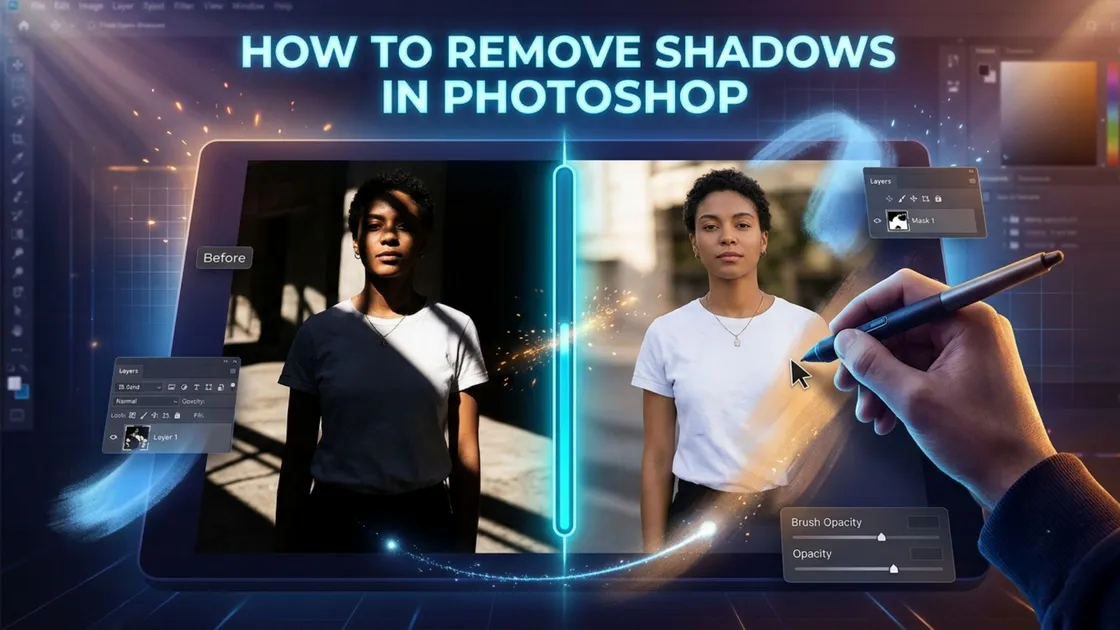
Harsh shadows can ruin a good shot. A dark patch across a face, a grey blob behind a product, a stray shadow on a wall: all of it pulls the eye away from your subject. The good news is that you can fix most of it in a few minutes.
This guide shows how to remove shadows in Photoshop with four practical methods, from quick brush fixes to AI tools. Whether you need to remove shadows from pictures of people or products, not every shadow needs the same fix. A hard shadow falling across someone’s face calls for a gentler touch than a dark patch behind a product, so pick your method based on what you’re dealing with.
Why Shadows are Tricky to Remove
Shadow isn’t a stain on your photo. It’s the real surface underneath, just darker, and it still holds colour and textures. That’s why crude fixes fail. When you try to remove shadows by painting over them or cranking up brightness, the detail vanishes, leaving a flat, grey-looking patch. The goal is to lift the shadow, not wipe it out.4 Methods to Remove Shadows in Photoshop
Method 1: Brush, Clone, and Healing Tools
This is the best method for small shadows, plain backgrounds, and sharp-edged shadows.
Wondering how to remove shadows from pictures quickly? Start here.
Step 1: Click Ctrl/Command + J to duplicate your layer. Whatever happens during editing, your original photo stays untouched underneath.
Step 2: Use the Healing Brush tool to conceal a defect by blending in the surroundings.
Step 3: Hold Alt/Option and click a clean spot with similar lighting.
Step 4: Paint over the shadow in short strokes; resample often.
Step 5: Keep brush softness around 20–40% so edges blend in.
Tip: Sample from the same surface. A bright wall will never blend with a patch sampled from a dark floor.
Method 2: Dodge Tool and Curves
This method is best for faces, skin, and soft shadows under the eyes, nose, or chin. The Dodge tool lightens whatever you brush over, and used gently, it’s one of the easiest ways to remove shadows from photo portraits. Set the Range to Shadows, keep the Exposure low (around 5-10%), and build the effect slowly with several light passes instead of one heavy stroke. For more control, add a Curves layer, a simple graph that controls brightness. Pull the middle of the curve up, invert the mask with Ctrl/Cmd + I, and paint the brightening only where you need it. For portraits, pair it with frequency separation in Photoshop to keep pores and texture intact.
One thing to watch: too much dodging washes out the skin and blows highlights, so go lighter than you think you need.
Method 3: Adjustment Layers and Masks
Suitable for large shadows and edits you may want to change later
This is the most flexible way to remove shadows in Photoshop because nothing is permanent.
- Add a Curves or Exposure adjustment layer.
- Brighten until the shadow matches its surroundings.
- Fill the layer mask with black to hide the effect.
- Paint white over only the shadow area.
- Lower opacity if it looks too strong.
A mask works like a stencil: white shows the edit, black hides it. If the colour shifts, add a clipped Hue/Saturation layer to correct it.
Method 4: AI and Generative Fill
For busy backgrounds, cast shadows, objects, and tight deadlines.
Photoshop’s AI tools can remove shadows in seconds.
- Generative Fill: Select the shadow with the Lasso tool, click Generative Fill, leave the prompt empty, and generate.
- Remove tool: Brush over the shadow and let Photoshop fill it.
Comparison of Shadow Removal Methods
| Method | Speed | Control | Best For |
|---|---|---|---|
| Healing/ Clone | Medium | High | Small shadows |
| Dodge/ Curve | Medium | High | Faces and skin |
| Mask | Slower | Very High | Large, tricky shadows |
| Generative Fill | Fast | Lower | Background quick fixes |
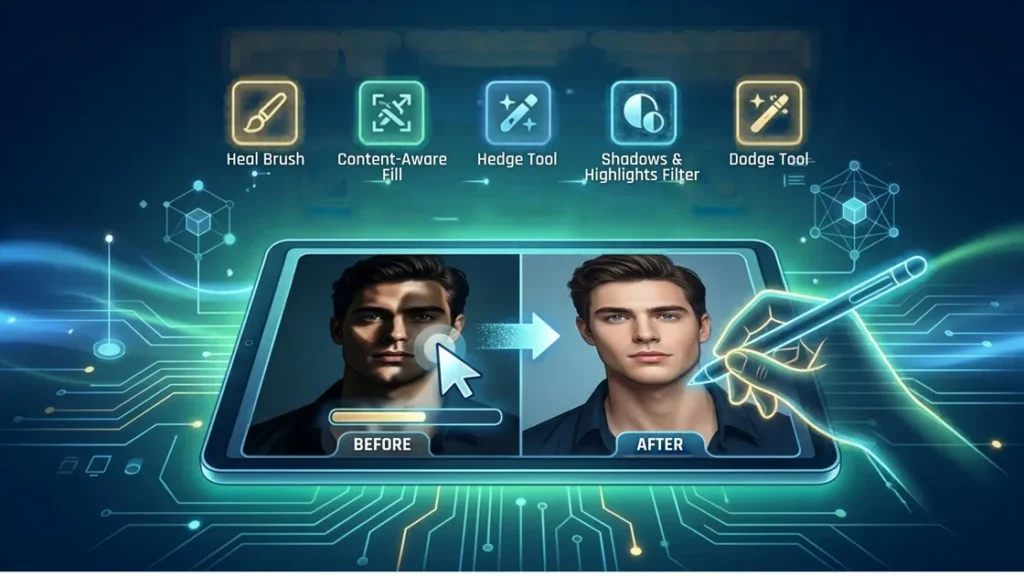
The limits: AI can smooth away texture, invent odd details, or miss soft shadow edges. Always zoom to 100% and compare against the original. Run it on a separate layer so you can undo it.
Keeping the Result Natural
A good fix is one nobody notices. Check these three things:
- Grain: Retouched areas often look too smooth. Add a touch of noise (Filter > Noise > Add Noise, about 1–2%) to match the rest of the photo.
- Colour: Shadows lean cooler; light areas lean warmer. Match them so the patch doesn’t look pasted on.
- Edges: Hard edges give the game away. Feather your selections and use soft brushes.
Finally, don’t remove every shadow. A little shading gives faces and products shape. Aim to soften them, not wipe them out.
Need Flawless Shadow Removal Without the Hassle?
Shadow fixes take time to get right, especially across hundreds of images. Plexail offers professional photo editing and photo retouching services, so your pictures come back clean, natural, and ready to publish. Send us your photos and see the difference. Contact Plexail today and get a quote. Call us at +91 9819259097