Key Takeaways
- Only select the teeth. Lips, gums, and skin should be untouched.
- Reduce yellow before brightening.
- Slightly increase brightness.
- Use a teeth whitening photo editor that lets you mask only the teeth.
- The whites of the eyes should be slightly warmer than the teeth.
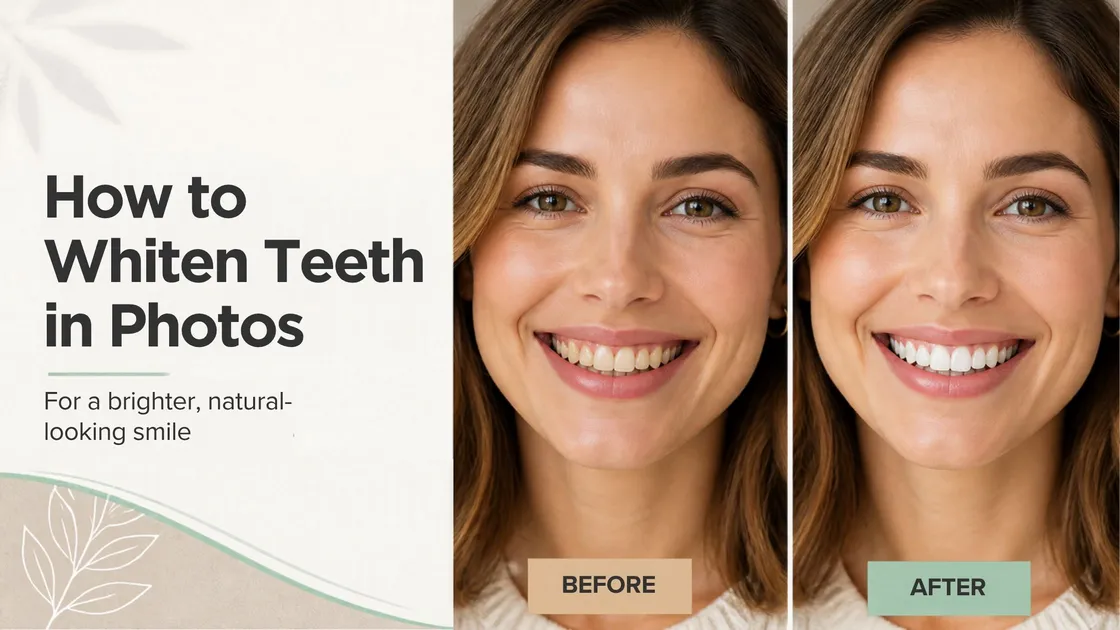
A happy photo only looks happy when your big smile looks actually bright, and it brightens with bright, white teeth; of course, pure white teeth are not very common. So, to whiten teeth in a photograph, select only the teeth, reduce yellowness and slightly increase brightness. Any teeth whitening photo editor can do this, whether it’s Photoshop, Lightroom or a phone app. Overly white teeth can appear artificial; therefore, the change should be subtle.
Being an editor, suppose you are doing wedding photo editing, and the bride has a lovely, natural smile. You brighten her teeth a little, but when you look at the final image, they appear much whiter than they did in real life. It is a small editing mistake, but it can make an otherwise beautiful photo look less natural. So, a few subtle adjustments can fix it.
The Simple Rule of Natural Teeth Whitening
If we have to say it in one line, the whole idea is to minimize the yellowness, lift the color a touch.
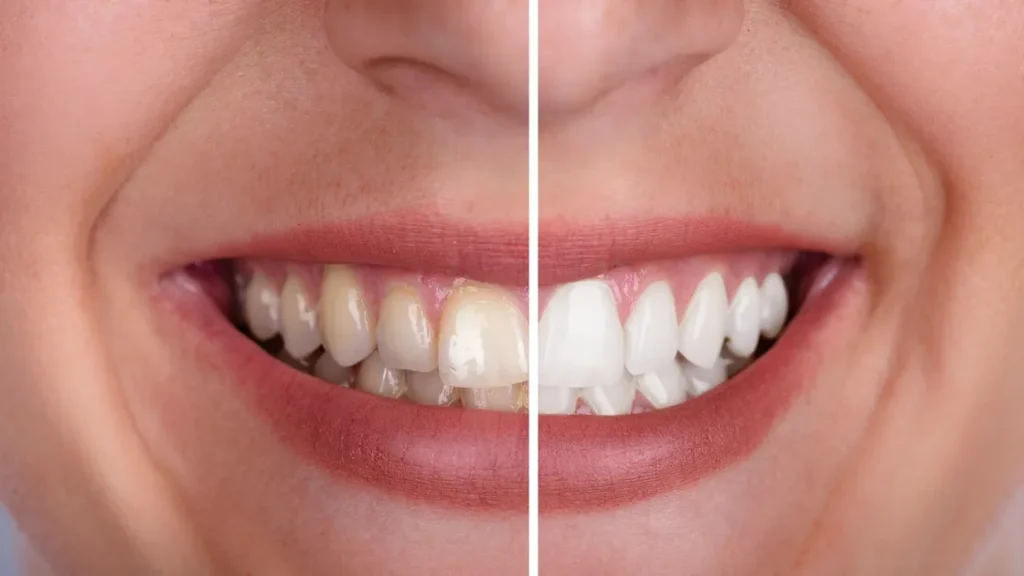
People often do it backwards, maxing out the whitening and leaving the teeth looking dull because real teeth can never be perfectly white. There’s always some warmth to them; otherwise they will appear artificial.
How to Whiten Teeth in Photoshop
If you’re wondering how to whiten teeth in Photoshop, it’s a good choice when you want control over individual areas of a portrait. You can adjust the color, brighten the teeth, and correct small imperfections without changing the rest of the face.
Here’s a simple method to get started.
Steps to Whiten Teeth in Photoshop
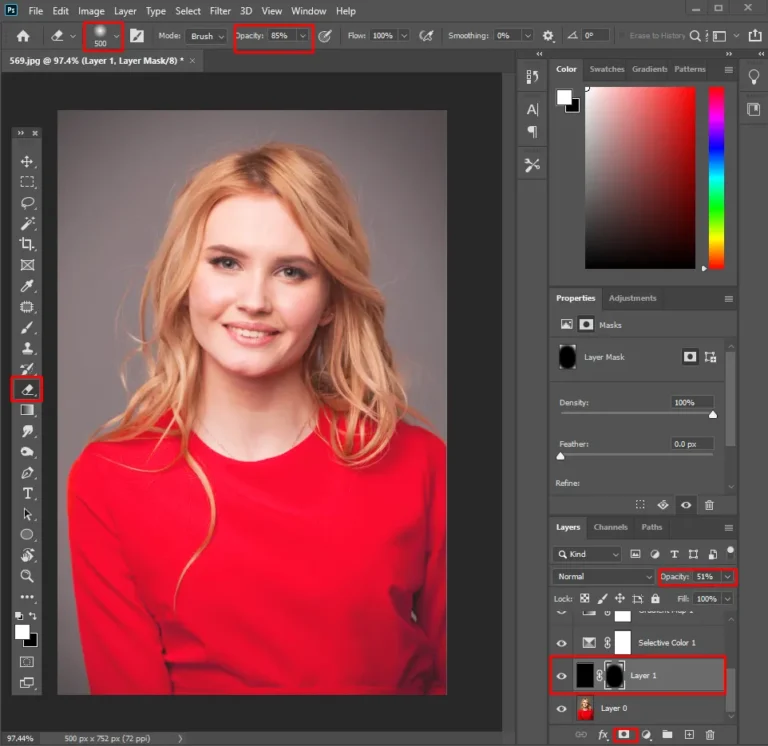
- Select the teeth with the Lasso tool or Quick Selection tool, make sure to add a 1-2 pixel feather so the edges blend.
- Add a Hue/Saturation adjustment layer; you will see a dropdown for Yellows and lower the saturation. Try -25 to -40 as a starting point.
- Increase the lightness by 5-10 points again, not too much.
- Add a Curves layer to lift the midtones.
- Use a brush to paint the mask black over any unwanted areas like gums or lips, and maybe lower the opacity of the whole thing to 50-70% if it looks too intense
- These are all just starting figures; every photo will require some fine-tuning depending on the lighting and color of the subject’s skin.
These are all just starting figures; every photo will require some fine-tuning depending on the lighting and color of the subject’s skin.
How to Whiten Teeth in Lightroom
Lightroom editing is ideal for photographers who work with entire galleries of photos. It enables them to apply the same alterations several times in one sitting.
Steps to Whiten Teeth in Lightroom
- Select the Brush first by opening the masking panel.
- Set the Saturation to approximately -30 to -50 and Exposure to about +0.2 to +0.4.
- Paint over the teeth, then use Erase to remove excess.
Newer versions of Lightroom also offer a Teeth option in the drop-down menu under People masks. This is convenient, but it is worth noting what features a particular version offers.
Once the desired result is achieved, it can be saved as a preset and used again. However, it should be noted that each image may require different levels of intensity for optimal results.
Using a Teeth Whitening Photo Editor App
As a rule, this kind of task is time-consuming and may be challenging when working on the train, not at a desk. A good teeth whitening photo editor will let you fix a couple of photos for social media in a few minutes. Such apps as Facetune, YouCam, AirBrush, BeautyPlus, Picsart and Lightroom mobile have different sets of tools, but most of them have an option to brighten teeth. Many also include a red eye remover, so you can fix both flaws in one pass.
The principle of action of all such programs is similar, but the only difference is the degree of freedom and customization.
What to Watch for in Apps
- Auto tools can often be over-whitened so reduce the strength by half.
- Some can blur fine detail on the teeth.
- Edges can run into the lips.
- Features and pricing change often, so it is important to check what the free version can do before committing to the paid version.
Avoiding the Over-Whitened Look
Not sure if you have over-whitened? Watch out for these signs:
- The whites of the eyes are not as vibrant as the teeth.
- Gaps and shadows between the teeth have disappeared.
- Grey, blue or neon tint has appeared.
- There is a pale halo around the lips.
How to Dial It Back
- Reduce the opacity of your edit.
- Boost up a little saturation for warmth.
- Compare your teeth to your eyes and try to match their brightness.
- Give it another look with new eyes after taking a five-minute rest.
Need Professional Teeth Whitening in Photos?
Plexail’s portrait retouching team can brighten smiles across entire galleries, so every photo looks bright but natural. Contact us on +91 9819259097 or info@plexail.com.