Key Takeaways
- Simple subjects that contrast sharply are generally best for Select Subject or Quick Selection tools that are automated.
- The Pen Tool gives the most precise, hard-edged cutouts but is slower and less suited to soft or detailed edges like hair.
- Select and Mask with the Refine Edge brush is the traditional method for working on delicate or intricate edges.
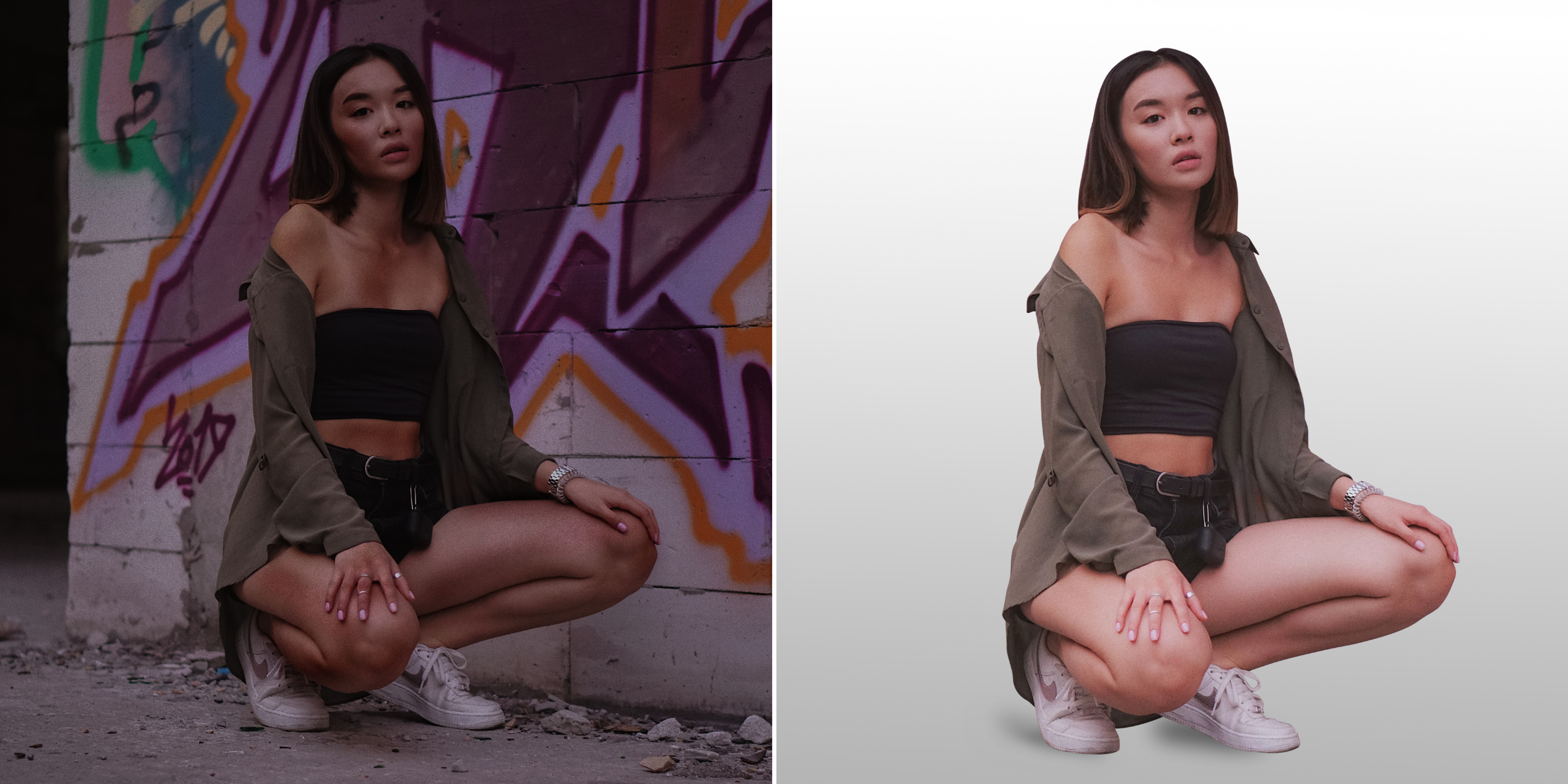
- A clean cutout, a subject fully isolated from its background with no stray edges or halos, is one of the most useful and most commonly needed Photoshop skills. The right method depends heavily on what you’re cutting out: a simple, high-contrast object needs a different approach than a subject with fine detail like hair or fur.
- Non-destructive editing involves masking the background rather than erasing the unwanted pixels.
Start With Automated Selection Tools
For straightforward subjects against a relatively clean background, Photoshop’s Select Subject tool under the Select menu or the Quick Selection tool can produce a solid starting selection with minimal manual work. These tools use edge detection to automatically identify a subject, which handles a large share of everyday cutout work well, especially for products or objects with clear, defined edges.Use Pen Tool for Precise, Hard Edges
For subjects with clean, geometric, or hard edges — packaging, furniture, structured objects — the Pen Tool creates the most precise cutout available. It works by placing anchor points around a subject to build a vector path, which can then be converted into a selection and a mask. This method is slower than automated selection, but it gives complete manual control, which matters for subjects where automated tools tend to round off corners or miss fine straight edges.Handling Hair, Fur, and Soft Edges
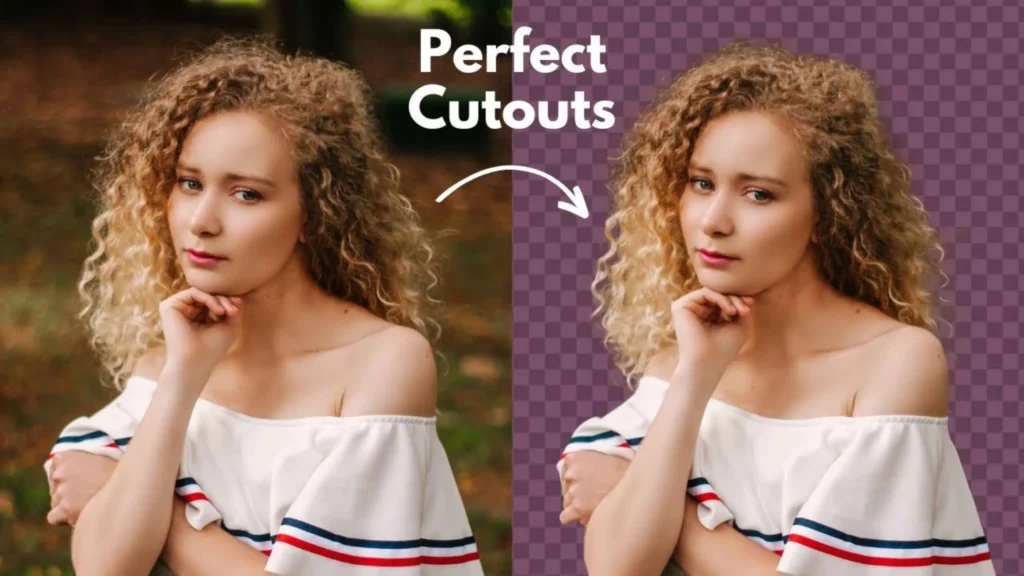
This is where most cutout attempts run into trouble. Hard-edged tools like the Pen Tool don’t handle wispy, soft-edged detail well; hair strands or fur edges end up looking harsh or unnaturally clean. The Select and Mask workspace (accessible after making an initial selection) is built for exactly this problem: its Refine Edge brush lets you paint over hair or fur areas specifically, and Photoshop intelligently extends the selection to capture fine strands that a basic selection would miss entirely.
Within Select and Mask, adjusting the Radius, Smooth, Feather, Contrast, and Shift Edge sliders lets you fine-tune how the selection handles transitional areas, useful for a natural, unharsh edge on genuinely complex subjects.
Editing Without Altering the Original
Rather than deleting background pixels outright, output your selection to a layer mask. This keeps the original image data intact under the mask, meaning you can go back and adjust the cutout later without having permanently destroyed anything. This matters especially for client work or anything you might need to revise; a non-destructive workflow means revisions don’t require starting over.When to Combine Techniques
Many real-world subjects need more than one technique. A product shot might have simple hard edges around most of its shape (suited to Quick Selection or the Pen Tool) but a section with fine detail, a tag, a strap, or texture that needs Select and Mask’s refine tools. Don’t feel locked into one method for an entire subject; combining approaches on different parts of the same cutout is standard professional practice.Frequently Asked Questions
Which Photoshop tool is best for cutting out a simple product photo?
Select Subject or Quick Selection generally handles simple, high-contrast subjects well as a fast starting point, further polished with Select and Mask if edges need cleanup.
Why does the Pen Tool struggle with hair or fur?
The Pen Tool creates hard, geometric vector paths, which work well for clean edges but can’t naturally capture the soft, irregular detail of hair or fur strands; that’s specifically what Select and Mask’s Refine Edge brush is built to handle.
What does "non-destructive" mean in the context of cutouts?
It is a technique that uses a layer mask to cover up the background instead of deleting the unwanted pixels.
Can I use more than one cutout technique on the same image?
Yes, and it’s common practice. Many subjects have both hard, simple edges and areas of fine detail; using the right tool for each section of the same cutout usually yields a better result than forcing one method across the whole image.