Key Takeaways
- Design covers at 1080 x 1920 px (9:16), but keep text and key elements inside the central ~1080 x 1350 area so nothing gets cropped in the grid.
- Consistent fonts, colors, and layout across covers are what make a grid look branded.
- Free tools (Canva, Figma, and Adobe Express) have ready-made reel-cover templates.
- You can set or change a cover when posting and, in most cases, edit it afterward.
Your Reels cover is the first thing anyone sees when they land on your profile. Consistent, clear covers make your grid look professional and tell visitors what your content is about at a glance, which is what turns a profile visit into a follow. This guide shows how to make Instagram Reel covers, with the exact sizes, the fastest tools, and a repeatable process.
Why Reel Covers Matter
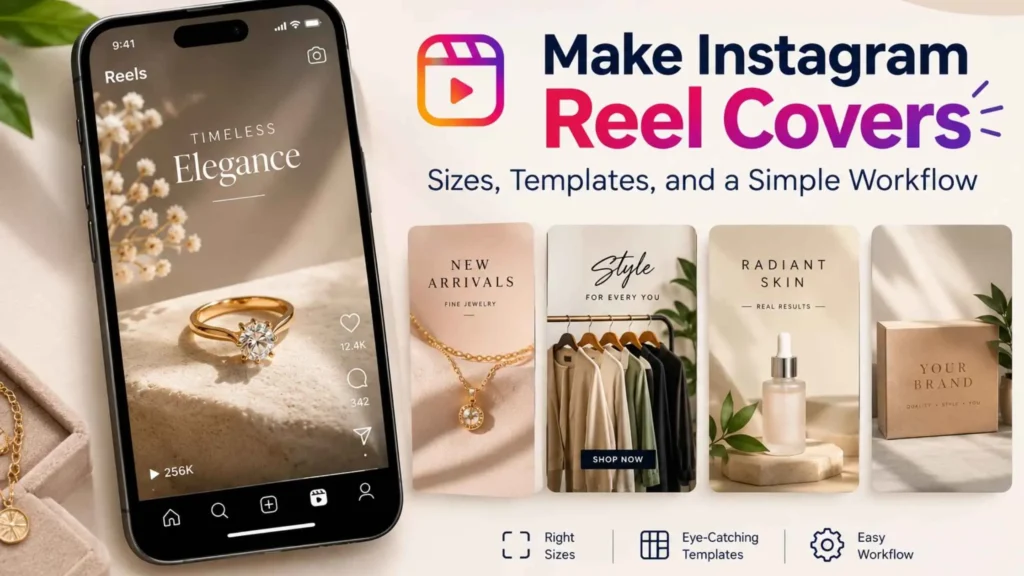
A Reel plays in the feed, but the cover is what lives permanently on your profile grid. When covers are random screenshots, the grid looks messy; when they share a style, the whole profile signals that you are organized and worth following. Covers also add context; a short title on the cover tells people what they will get before they tap.The Correct Reel Cover Size
The Instagram reel cover size is 1080 x 1920 pixels (9:16 aspect ratio), the same as the full reel canvas. But Instagram crops it differently in the feed versus the profile grid. The grid shows a roughly 1:1.25 portion, so keep your title and logo within the central safe zone (about 1080 x 1350) and leave the top and bottom edges free of important content. Design at 9:16; protect the center.Fastest Tools for Reel Covers
- Canva: the largest library of free reel cover templates; set a brand kit for consistent fonts and colors.
- Adobe Express: quick, template-driven, good for on-brand batches.
- Figma (Community files): flexible if you want to build a reusable cover template.
- Instagram in-app: basic text and stickers over a video still, good enough for quick covers.
Step-by-Step: Create and Set a Cover
- Pick a template at 1080 x 1920 (or set a custom size) in Canva/Express.
- Add your title, keeping text large and inside the central safe zone.
- Apply your brand colors and one consistent font so it matches your other covers.
- Export as PNG or JPEG at full resolution.
- When posting your Reel, on the cover screen choose “Add from Camera Roll” and select your exported cover.
- Publish, and if you need to change the cover later, open the Reel, tap the three dots, and edit it.
Design Tips That Make Covers Work
Keep the important design in the center, use high contrast so text is readable on small screens, and reuse the same layout so a new cover instantly looks like part of your set. If a still from the video is strong, use it with a short title overlaid for instant clarity about the content. Fix brightness and crop first in an Instagram photo editor; the best Instagram photo editor for covers is simply the one that lets you save your brand colors and fonts. If your still needs trimming, our Photoshop guide shows how to crop an image in Photoshop. For a deeper look at keeping visuals consistent, see how photo editing affects branding.Frequently Asked Questions
What size is an Instagram Reel cover?
Design at 1080 x 1920 px (9:16). Keep text and key elements within the central ~1080 x 1350 safe zone so they are not cropped in the profile grid.
Can I change a Reel cover after posting?
In most cases, yes: open the Reel, tap the three dots, choose Edit, and update the cover. Availability can vary by app version and region.
How do I make Reel covers for free?
You can create your cover using the templates provided in Canva, Adobe Express, Figma Community, and Instagram’s in-app cover editor.
How do I keep all my covers consistent?
Build one template with fixed fonts, colors, and layout, then swap only the title and background image for each new cover.
Why does my Reel cover look cropped on my profile?
The feed shows the full 9:16 cover, but the profile grid crops to a narrower portion. Keep titles and logos inside the central ~1080 x 1350 safe zone so nothing important is cut off in the grid.
Can I use a photo instead of a video frame as my cover?
Yes. When posting, choose “Add from Camera Roll” on the cover screen and select any image you designed at 1080 x 1920; it does not have to be a still from the Reel.